How to Use Discord Emoji: Complete Tutorial for Custom Server Emojis

The numbers behind Discord emoji usage are pretty staggering: over 455,000 emojis zip through messages every single minute. But here's what really caught my attention – users have created more than 500 million custom emojis unique to their communities. That's not just people having fun with reaction GIFs. That's half a billion personalized expressions tailored to specific groups and interests.
Custom Discord emojis do more than add color to your chats. They become the visual language of your community. Whether you're running a tight-knit gaming server that needs the perfect "gg" reaction or managing a brand community that wants consistent visual identity, getting your emoji game right matters. Exploring different styles of Discord emojis can help you quickly understand what fits your community and what doesn’t.

Turn your Discord emojis into organic community growth. Try our bot for free!
The question isn't whether you should use custom emojis – it's whether you're using them effectively. This guide covers everything from the technical basics to the community-building potential of a well-curated emoji collection.
Setting Up Custom Emojis: The Technical Side
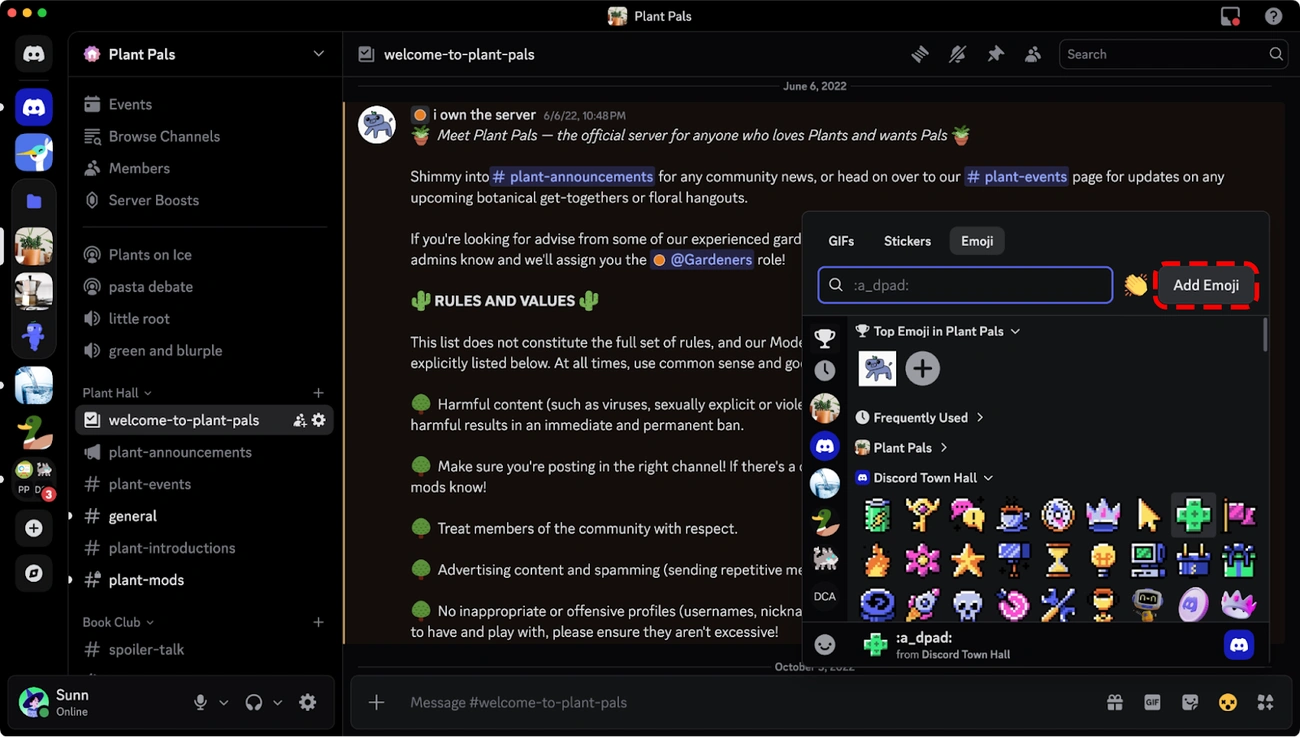
Image Source: Discord
Getting custom discord emojis onto your server starts with permissions. You need either server ownership or the "Create Expressions" permission enabled for your role. Once that's sorted, navigate to Server Settings through the dropdown arrow next to your server name, then hit the Emoji tab.
Discord recently rolled out Emoji Studio for desktop and browser users (mobile users are still waiting), which makes the whole upload process much smoother. Look for "Add Emoji" in the emoji picker to access this feature. The system accepts JPEG, PNG, GIF, WEBP, or AVIF files. What's handy is the built-in editing – you can resize, rotate, and zoom your image right during upload, so no need to fire up Photoshop first.
Here's where the technical requirements come in. The sweet spot for discord emoji size is 128x128 pixels, though Discord will auto-adjust if you upload something different. Your file needs to stay under 256 KB. Emoji names have specific rules: minimum 2 characters, alphanumeric plus underscores only. No spaces allowed, so think :happy_cat: rather than trying to squeeze in :happy cat:.
Animated emojis work the same way as static ones during upload. Discord automatically sorts them into a separate "Animated Emoji" section once they're processed. Remember those 50 custom emoji slots by default we mentioned? Nitro or Nitro Basic subscribers get an additional 50 slots specifically for animated emojis.
The process itself is pretty straightforward, but the real challenge comes in choosing emojis that actually serve your community's needs rather than just looking cool.
Using and Managing Your Discord Emojis
Image Source: Discord
The emoji picker lives behind that gray smiley face icon on the right side of your message box. Discord organizes your custom emojis by server, with frequently used ones floating to the top for quick access. You can also type a colon followed by the emoji name (like :happy:) to search directly. Here's something that trips people up: Discord's autocomplete only searches from the beginning of emoji names, so :ha will find :happy: but completely miss :superhappy:.
Emojis have two distinct sizes depending on how you use them. In regular text messages, they appear at 22x22 pixels. But send an emoji by itself without any text? It becomes a wumboji at 32x32 pixels. You can post up to 27 emojis in one message before they shrink back down. Pro tip: this sizing trick doesn't work in compact mode.
The Nitro divide becomes obvious when you start collecting emojis across servers. Without Nitro, custom emojis stay locked to their home server. Nitro subscribers can use any custom emoji from their joined servers anywhere on Discord. Find a perfect reaction in Server A? Use it freely in Server B or your DMs. It's essentially building a personal emoji collection across your entire Discord experience.
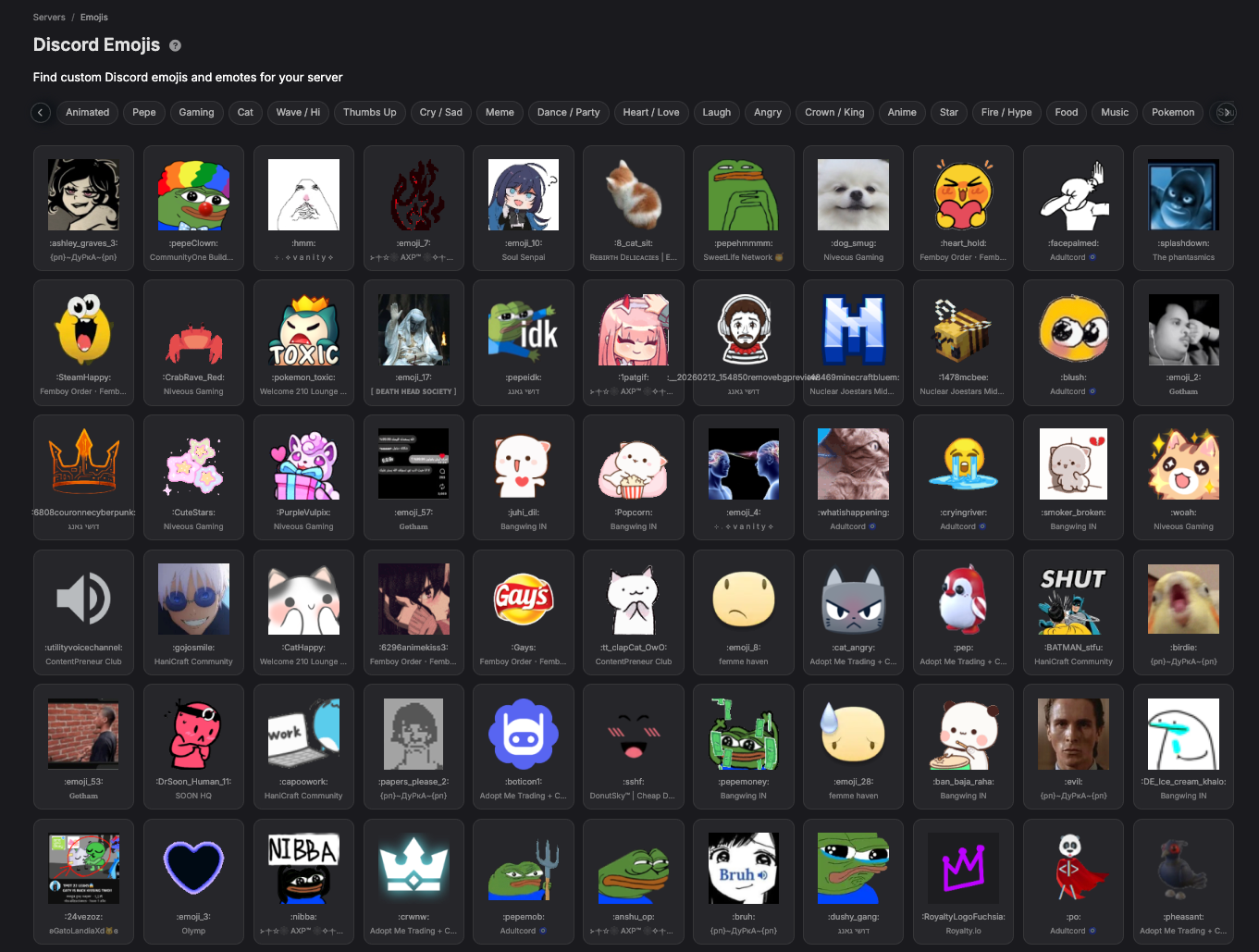
CommunityOne recently added a dedicated Emojis Page where users can preview, manage, and download custom emojis directly from server listings. This makes emoji discovery much easier than hunting through individual servers.
Reactions work by hovering over messages and clicking the "Add Reaction" icon. Hold shift while selecting to stack multiple reactions at once. Nitro users get access to Super Reactions, which add animations to their emoji reactions – a small touch that makes reactions feel more expressive and engaging.
When Discord Emojis Don't Work: Troubleshooting the Common Headaches
Those purple-locked emojis staring back at you? That's Discord telling you these custom emojis are off-limits outside their home server unless you have Nitro or Nitro Basic. But here's the frustrating part – even Nitro subscribers sometimes can't use them if the server admin disabled external emoji usage. Another culprit: servers that lost boost levels and had their emoji slots reduced. Those excess emojis get locked until someone ponies up for more boosts.
Upload failures happen more often than Discord lets on. The platform quietly enforces a 50-emoji-per-hour upload limit. Try to bulk upload your entire meme collection at once, and Discord will fail silently – no error message, no explanation, just... nothing. The fix is annoyingly simple: wait an hour and try again.
Mobile users get hit with a particularly weird bug where emojis show up as text codes like :emojiexample: instead of actual images. The cause? Emoji names with capital letters or duplicate names across servers. Discord's mobile app apparently can't handle :LUL: versus :lul: anymore, so it just gives up and shows you the text code. Rename the emoji with consistent lowercase, and the problem disappears.
File size limits bite hardest with animated emojis. Standard servers cap individual emojis at 256 KB, while boosted servers (Level 2+) get 512 KB to work with. That elaborate 60-frame animation you spent hours perfecting? It probably won't fit. Reduce the frame count or compress harder – there's no way around these limits.
The "Maximum emoji slots reached" message is Discord's way of saying your server is full. Delete some existing emojis or boost your server for more slots. It's straightforward, but it forces you to make tough choices about which emojis deserve to stay.
Where to Go From Here
The technical stuff is straightforward once you know the rules. File sizes, naming conventions, upload limits – these are just hurdles to clear, not barriers to creativity. What matters more is how you think about custom emojis as part of your community's identity.
Start small. Pick three to five emojis that capture your server's personality – maybe a custom reaction that fits your community's sense of humor, or an animated version of your server logo. Watch how people use them. Do they actually enhance conversations, or do they just sit there looking pretty?
The servers with the best emoji collections aren't necessarily the ones with the most uploads. They're the ones where emojis feel integrated into the community's daily conversations. A well-chosen custom reaction can become as essential to your server culture as any channel or rule. Your members will start using them naturally, and new people will immediately understand what your community is about.
Don't overthink it. Upload a few, see what works, iterate from there. The 50-slot limit forces you to be intentional – which is actually a good thing.
FAQs
Q1. How do I create custom emojis for my Discord server? To create custom emojis, you need server ownership or the "Create Expressions" permission. Navigate to Server Settings by clicking the dropdown arrow next to your server name, then select the Emoji tab. Use the Emoji Studio feature (available on desktop and browser) to upload JPEG, PNG, GIF, WEBP, or AVIF files. The optimal size is 128x128 pixels with a maximum file size of 256 KB.
Q2. How can I insert emojis into my Discord messages? Click the gray smiley face icon on the right side of the message box to open the emoji picker. You can also type a colon followed by the emoji name (like :happy:) to search using shortcodes. For standard emojis like thumbs up, type :up or :thumb, or use your device's emoji keyboard (Windows key + . on Windows, or Command + Control + Space on Mac).
Q3. What are the emoji slot limits for Discord servers? Every Discord server gets 50 custom emoji slots by default. With Nitro or Nitro Basic subscriptions, you unlock an additional 50 slots specifically for animated emojis. When you reach the maximum emoji slots, you'll need to delete existing emojis or increase server boosts to add more.
Q4. Why can't I use certain custom emojis in other servers? Custom emojis with locked purple backgrounds are restricted to their original server unless you have Nitro or Nitro Basic. Without a Nitro subscription, you can only use custom emojis within the server where they were created. Nitro subscribers can use custom emojis from any joined server across all of Discord.
Q5. Why do my emojis appear as text codes instead of images on mobile? This issue occurs when emoji names contain capital letters or when duplicate names exist across servers. Discord mobile no longer parses capitalization correctly, so :LUL: may conflict with :lul:. To fix this, rename the emoji using only lowercase letters and ensure unique names across your servers.