The Hidden Discord Features You're Not Using (But Should Be) in 2026

Most Discord users never venture beyond the basics—and honestly, there's a good reason for that. The platform works well enough for memes, voice chats, and keeping up with your gaming crew. But if you peek into your end-of-year Checkpoint to see what you actually used throughout the year, you'll quickly realize Discord has built a lot more than you're taking advantage of.

Wanna 4x more Discord server activities? Invite our bot for free!
Here's the thing: while everyone's been focused on the core chat experience, Discord quietly rolled out an impressive collection of tools that go way beyond messaging. Community servers unlock features like custom onboarding, monetization options, and analytics that most server owners have never touched. These aren't just bells and whistles—they're legitimate tools for building and growing online communities.
The monetization features alone are worth exploring. Server Subscriptions and Server Shops let creators actually make money from their communities. Server Insights provide detailed analytics about member activity and engagement patterns. Yet most of these Discord community features sit unused because people either don't know they exist or assume they're too complex to bother with.
I've spent time digging into these hidden corners of Discord, and I have to say: some of these tools are genuinely useful, while others feel like solutions looking for problems. Whether you're managing a gaming server or running a creative workshop, there are features already built into Discord that could make your life easier—you just need to know where to look and which ones are actually worth your time.
Hidden Chat Features You Might Have Missed
Discord's chat interface looks simple enough—type message, hit enter, repeat. But dig a little deeper and you'll find a bunch of formatting and organization tools that most people completely ignore. Some of these are genuinely useful for keeping conversations manageable, while others feel like features that Discord added because they could.
Using threads to reduce clutter
Busy channels can turn into absolute chaos when multiple conversations happen simultaneously. Threads are Discord's answer to this problem, and they actually work pretty well once you get used to them.
Think of threads as temporary side conversations that branch off from the main channel. Instead of everyone talking over each other in the same space, related discussions get their own contained area. Creating one is straightforward—click the + icon next to the message box and select Create Thread, or hover over any message, hit the three dots, and choose Create Thread.
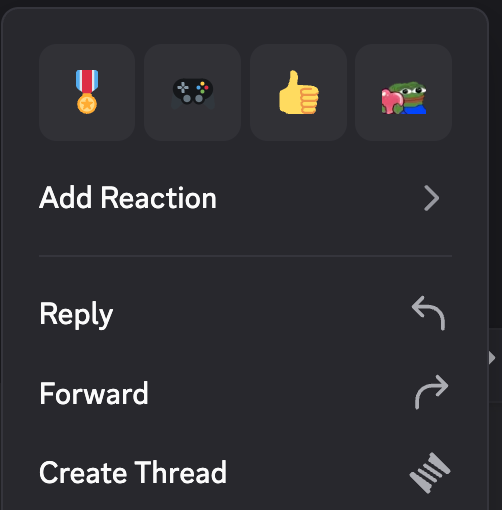
Once you create a thread, it appears nested under the original channel in your sidebar. The conversation continues there without clogging up the main channel. Threads automatically archive after three days of inactivity by default, though you can adjust this timing through the thread settings. Archived threads don't disappear—they just move to a separate tab where they're accessible but out of the way.
For active communities, threads are a lifesaver when debates get heated or when someone drops an interesting topic that deserves its own discussion. Rather than spinning up entirely new channels for temporary chats, threads provide that middle ground—organized but not permanent.
Replying and quoting messages properly
Fast-moving conversations quickly become impossible to follow without proper message references. Discord gives you two ways to handle this: replies and manual quoting.
The Reply function creates a small preview of the original message above your response and notifies the author. It's clean, automatic, and works well for straightforward responses. But sometimes you need more control over how you reference previous messages.
That's where markdown quoting comes in handy. Type a > symbol before any text to create a block quote:
This is how quoted text appears
For longer quotes, use three greater-than symbols (>>>) at the start. This approach gives you more flexibility than the Reply feature, especially when you want to reference multiple parts of a conversation or combine quotes from different sources.
In my experience, most people either use Reply exclusively or ignore message references entirely. Learning both methods makes you significantly more effective in group conversations.
Formatting messages with markdown
Plain text gets the job done, but sometimes your messages need more structure or emphasis. Discord supports markdown formatting that can make your communication clearer and more impactful.
The basic formatting options include:
- Bold text:
**text**text - Italic text:
*text*or_text_text - Underlined text:
__text__text - Strikethrough:
texttext - Inline code:
`text` - Multi-line code blocks:
```text```
You can combine formats too—***bold italics*** use three asterisks, while _***underlined bold italics***_ combine double underscores with triple asterisks.
Beyond text styling, markdown handles lists, headers, and other structural elements. Asterisks or hyphens create bulleted lists, numbers with periods make numbered lists, and hash symbols (#) at the start of lines create headers.
Most Discord users never touch formatting beyond maybe bold text. But if you're trying to explain something technical, share code snippets, or just want your messages to stand out in busy channels, these markdown techniques are genuinely useful. The learning curve is minimal, and the payoff in communication clarity is significant.
Cool Discord Features for Personal Use
Discord isn't just about managing servers—there are some genuinely useful personal features that most people never discover. These tools let you customize your experience, add personality to voice chats, and share content in ways that actually make a difference (rather than just being flashy gimmicks).
Setting custom status with activities
Your Discord status can say more than just "Online" or "Away." Custom status lets you display a personalized message with an emoji, which sounds simple but has some quirks worth understanding.
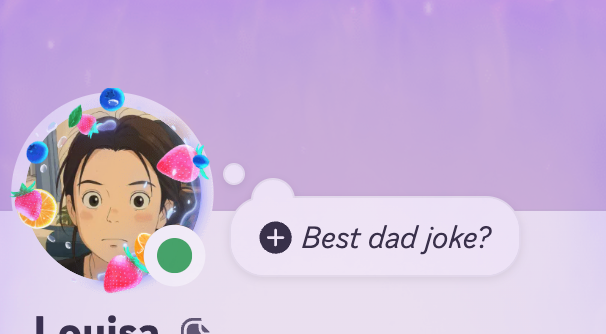
Here's what trips people up: setting a custom status actually hides your activity displays like "Playing..." or "Listening to..." that normally show what you're doing . Your friends won't see what game you're playing unless they click into your profile. For some, this is a feature—you can stay private about your gaming habits. For others, it's annoying because they want people to see their activities.
The workaround? Third-party tools like PreMiD extend your Discord presence to show web activity in real-time across over 1,300 services. It's one of those tools that sounds unnecessary until you realize how much time you spend on websites that could benefit from rich presence display.
Setting up custom status is straightforward:
- Click your profile picture at the bottom left
- Select "Set Custom Status"
- Enter your message and choose an emoji
- Set a duration or keep it until you clear it
Power users get creative with this—rotating custom messages during streams, showing current music through integrated apps, or just having fun with seasonal themes.
Using the soundboard and voice effects
Voice chat gets more interesting with Discord's built-in soundboard. Instead of just talking, you can drop sound effects at the perfect moment to punctuate conversations.
Discord ships with six default sounds: Quack, Airhorn, Cricket, Golf Clap, Sad Horn, and Da Bum Diss . You'll find the soundboard by joining any voice channel and looking for the 🎉 button (desktop) or dragging up the tab from below (mobile).
Most people stop there, but server admins can upload custom sounds (up to 5 seconds, 512kb max) through Server Settings > Soundboard . This opens up possibilities for inside jokes, memorable quotes from your community, or thematic effects that match your server's vibe.
Discord Nitro members get the real soundboard power: they can use sounds from any server they belong to in any voice channel . Essentially, you're carrying your entire sound collection everywhere you go. Nitro also lets you set automatic entrance sounds when you join voice channels .
For gamers who capture funny moments, these clips make great soundboard material. A quick edit in Audacity (or any free audio editor) can turn memorable voice chat moments into shareable sound bites that become part of your community's culture.
Streaming games and apps directly
Screen sharing has come a long way from basic video calls. Discord's streaming capabilities let you broadcast games and applications with surprising ease—and unlike public platforms like Twitch, these streams are private by default .
You get two options: full screen sharing (your entire monitor) or application sharing (just one window) . For gaming, Discord automatically detects most running games, making the process nearly effortless .
To stream a detected game:
- Start your game before or after joining voice
- Click the monitor icon with an arrow next to the game's name
- Select quality settings and hit "Go Live"
If your game doesn't appear automatically, head to User Settings > Activity Status, click "Add it!" and select from the list .
The privacy aspect makes Discord streaming particularly appealing. Only people in your voice channel can see your stream , creating an intimate sharing experience perfect for gaming sessions with friends, collaborative work, or showing off creative projects without broadcasting to the entire internet.
Pro tip: Games giving you streaming trouble? Try running in borderless window mode—this often resolves capture issues while maintaining the fullscreen experience .
Advanced Role and Permission Settings

Image Source: Discord Support
Most Discord admins stick to basic role assignments—assign someone "Moderator," give them some permissions, and call it done. But Discord's role system goes much deeper than that, with automation tools and permission layers that can genuinely streamline how your community operates.
Creating reaction roles with bots
Reaction roles solve one of those annoying server management problems: constantly having to assign roles manually. Members react to a message with specific emojis, and boom—they get the corresponding role. It's simple in concept but surprisingly powerful in practice.
The setup varies depending on which bot you choose. Reaction Roles bot keeps things straightforward with /new-reaction-role or /quick-new-reaction-role commands that walk you through the process. Carl-bot offers more sophisticated options if you need advanced customization. MEE6's reaction role plugin works well for servers already using their other features.
Where reaction roles get interesting is with the advanced options that specialized bots offer:
- Role usage limits - prevent a role from being assigned too many times
- Self-destructing roles - automatically remove roles after a set period
- Role requirements - make sure users have prerequisite roles before gaining access
These automated systems save you from manually managing role assignments, especially in larger communities where it becomes a real time sink.
Using role hierarchies for moderation
Role hierarchy is one of those features that seems simple until you actually need to secure a server with multiple staff members. Higher roles can manage lower roles, but not vice versa—a security principle that prevents junior moderators from promoting themselves or messing with admin permissions.
A typical hierarchy structure looks something like this:
- Member tier - basic chat and voice permissions
- Moderator tier - message management, timeouts, member moderation
- Admin tier - channel management, role assignments, server configuration
Here's the critical part most people miss: the Administrator permission is essentially a "god mode" that bypasses all channel restrictions and grants every possible permission. Hand this out carefully. Staff with "Manage Roles" can only modify roles below them in the hierarchy and can't grant permissions they don't have themselves.
For communities that take this seriously, color-coding roles and using consistent naming conventions helps everyone understand the authority structure at a glance.
Assigning roles through onboarding
Discord's Community Onboarding feature (available since March 2023) flips the traditional verification process on its head. Instead of making new members jump through hoops to access your server, you let them choose their own adventure during signup.
The system works through customizable questions that automatically assign roles based on answers. Ask "What brings you here?" with options for gaming, art, or music, and members get sorted into relevant channels immediately. You can configure whether questions appear before someone joins or after they're already in.
This beats the old bot-verification dance where new members got stuck in limbo until they figured out the right commands or reactions to unlock access.
For monetized communities, custom bots can create single-use invite links that assign specific roles automatically. This works particularly well for premium memberships or exclusive access tiers where you want to control exactly who gets what level of access.
The onboarding approach removes friction from the new member experience while giving you more control over how people discover your community's different areas.
New Discord Features in 2026
Discord's 2026 updates represent their most significant platform expansion yet—though whether that's good or bad depends on what you're trying to accomplish. These changes push Discord further into monetization territory while adding some genuinely useful community management tools. The question is: do these features solve real problems, or are they solutions looking for users?
Server Shops and digital product sales
Server Shops might be Discord's biggest bet on creator monetization, and honestly, it's a mixed bag. Server owners can now sell digital products directly through a dedicated storefront that appears at the top of members' channel lists. The placement is smart—maximum visibility without cluttering the interface.
The shop supports two main product types:
- Downloadable products - Digital files including images, videos, PDFs, and GIFs (up to 10 files per product with a maximum size of 500MB)
- Premium Roles - One-time purchases that grant special permissions or exclusive access to channels without requiring monthly subscriptions
Setup is refreshingly straightforward. After enabling monetization, you navigate to Server Settings > Server Products > "Create New Product". You can publish products directly to your shop or create embeds to promote them within text channels.
Here's where it gets interesting: communities are already selling everything from educational resources to creative assets. Popular categories include eBooks, graphics, templates, tools, and social media services. But I've noticed a pattern—the servers making this work tend to have specific, valuable expertise to offer. Generic "gaming communities" trying to monetize Discord Nitro giveaways aren't seeing much traction.
The real test will be whether members actually want to buy digital products through Discord, or if they'd rather stick to established platforms like Gumroad or Etsy for these purchases.
Improved onboarding flows
The onboarding improvements feel more substantive than the monetization push. Discord now supports multiple tiers of access with distinct permissions, visibility settings, and content boundaries. This addresses a real pain point for larger communities.
Server administrators can create differentiated experiences based on subscription level, role designation, or invitation status. The ability to designate specific channels and content areas as restricted—limiting access to approved members only—is particularly useful for educational communities or professional groups.
What I appreciate about these updates is the improved moderation and auditing tools that come with them. Managing participation across gated areas was previously a nightmare of manual role assignments and complex bot configurations.
As Discord noted, "This update is about giving communities more control over how they operate and grow". That's corporate speak, but in this case, it actually delivers on the promise.
Expanded App Directory integrations
The App Directory expansion has created something approaching an actual ecosystem. Every app now has its own Product Page explaining functionality and implementation, which helps cut through the noise of poorly documented bots.
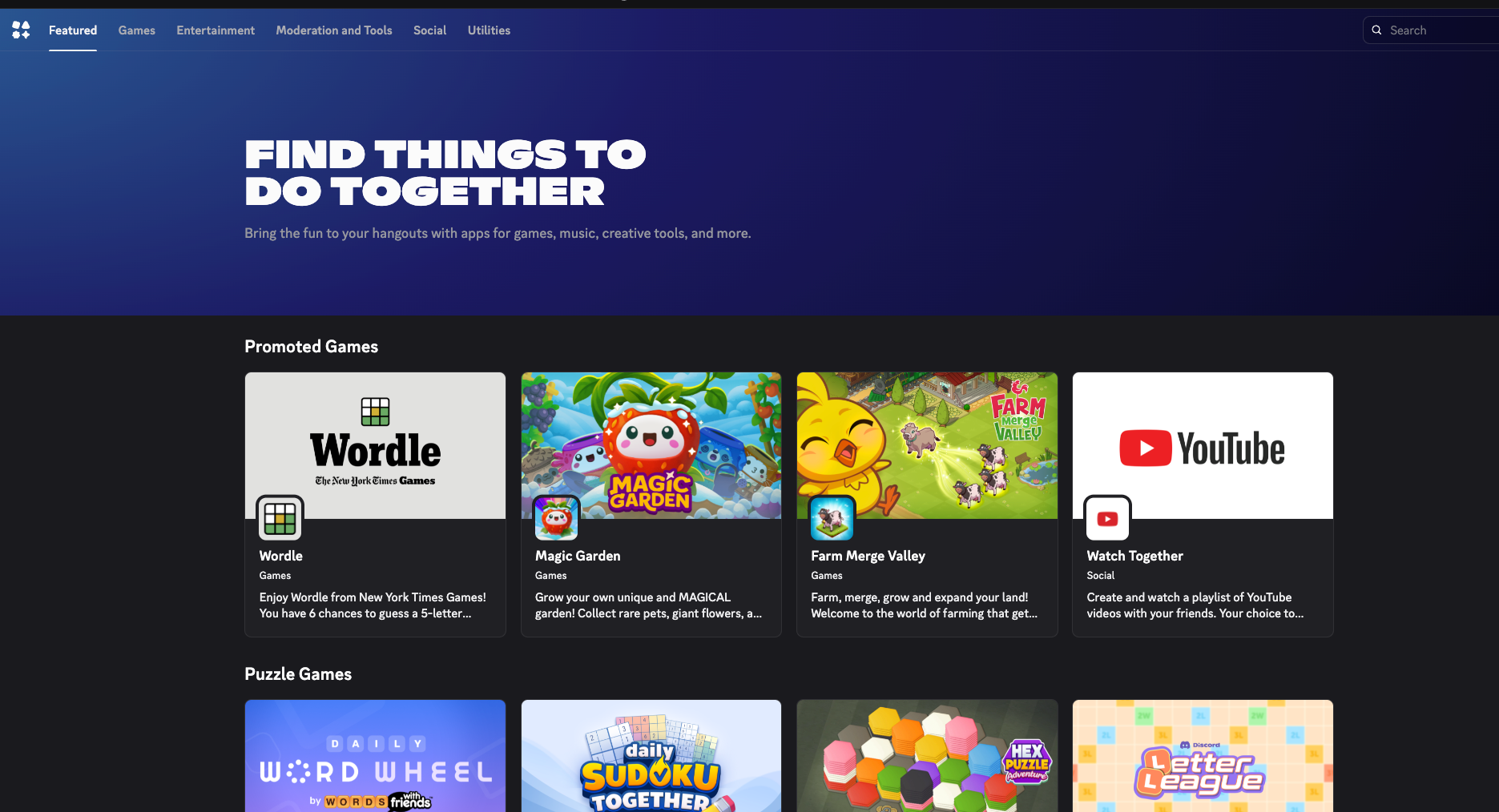
For developers, the directory offers real visibility. Verified app creators can customize their Product Page through the Developer Portal, highlighting supported languages, showcasing screenshots and videos, and listing key Slash Commands.
Product Pages include essential components like:
- Support Server links for assistance
- Media carousels showcasing functionality (including YouTube videos)
- External resource links including social media, Terms of Service, and Privacy Policies
- Language support information
- Clear descriptions of the app's purpose and capabilities
The search functionality within Server Settings > App Directory makes finding relevant applications much easier. This streamlined discovery has boosted app adoption significantly across the platform.
The expansion to premium app subscriptions, initially tested with a small developer group, has become a core ecosystem component. Developers can now monetize premium features through in-platform purchases, creating a marketplace of tools that genuinely extend Discord's functionality.
Whether these changes push Discord in the right direction remains to be seen. The monetization features feel like Discord chasing every other platform's playbook, while the community management improvements actually solve problems that existed. Your mileage will vary depending on what you're trying to build.
Community Server Features You Should Enable
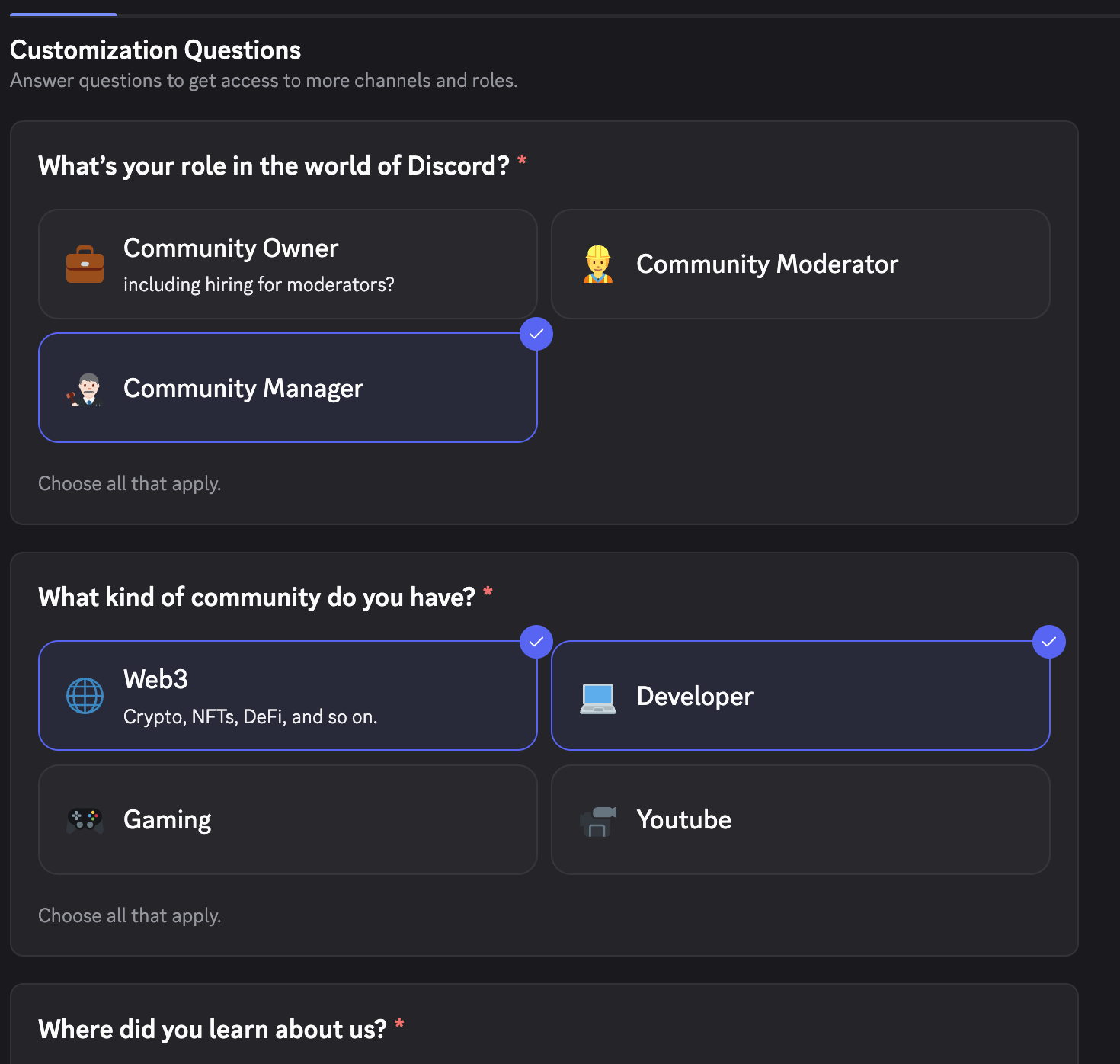
Most servers never bother enabling Community features, which is a mistake if you're serious about growth. Community servers unlock a different tier of Discord functionality that goes well beyond basic chat rooms. The question isn't whether these features exist—it's which ones actually move the needle for your specific community.
Forum channels for organized discussions
Forum channels solve a real problem: conversations that get buried in busy chat channels. They work like traditional forums where each discussion gets its own dedicated space. Creating one is straightforward—hover over a category, click the plus sign, select "Forum" as the channel type, and name it.
The organizational structure makes forums genuinely useful. You can create tags to categorize posts, set discussion guidelines, and choose between List View (better for text-heavy discussions) and Gallery View (perfect for showcasing creative work). Posts stay visible until you manually close them or they auto-archive after whatever timeframe you set.
Forums work best for communities that need persistent discussions—think feedback collection, showcasing work, or ongoing project discussions. They're overkill for casual gaming servers but essential for creative communities or anything involving collaboration.
Stage channels for live events
Stage channels transform how you run events. Unlike regular voice channels where everyone can talk at once, Stages let designated speakers address an audience. This structure works particularly well for:
- Podcast-style discussions and Q&A sessions
- Tutorial presentations with screen sharing
- Community showcases and creative demos
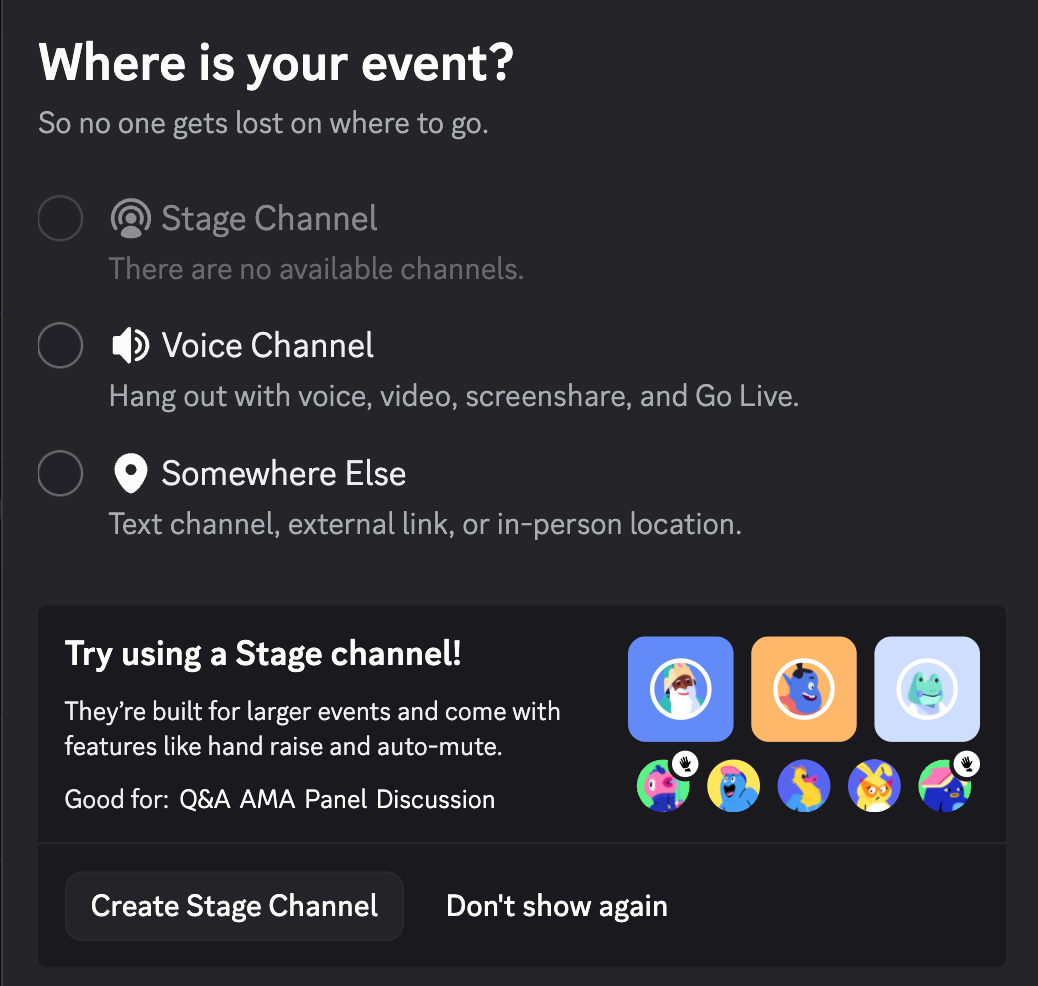
The capacity has grown significantly—up to 50 participants by default, expanding to 300 with server boosting. That's enough for most community events, though large-scale presentations might still need external platforms.
Stage channels are worth enabling if you regularly host events. For servers that rarely do organized presentations or discussions, they'll just clutter your channel list.
Server Discovery for public growth
Server Discovery puts your community in Discord's searchable directory, making it findable through the "Explore Public Servers" tab. The potential impact is significant—some servers report 5x visibility increases after getting listed.
The requirements are reasonable: at least 500 members and demonstrated activity patterns. Getting listed requires enabling Community features first, then navigating to Server Settings > Community > Discovery.
Discovery makes sense for public communities actively seeking growth. Private servers or niche communities that prefer organic growth can skip it without missing much.
The key insight: enable features that solve actual problems you're facing, not just because they exist. Forums for persistent discussions, Stages for regular events, and Discovery for growth-focused communities. Everything else can wait.
Using Bots to Supercharge Your Server
Bots are where Discord really starts to feel powerful—assuming you pick the right ones. The bot ecosystem is massive, which means there are excellent tools and complete wastes of server space sitting side by side. The trick is knowing which bots actually solve problems you have versus which ones just add feature bloat.
Top bots for moderation and engagement
MEE6 gets a lot of attention for good reason—it's genuinely useful for servers that need all-in-one functionality. The moderation tools, auto-moderation filters, and reaction roles work well together, though some of the premium features can feel overpriced. Dyno has earned its reputation through simple reliability; millions of servers use it because it just works without causing headaches.
For reaction roles specifically, Carl-bot is probably your best bet. Its system is sophisticated without being overly complex, plus the logging capabilities are solid. If budget's a concern, ProBot delivers impressive moderation tools without any cost. The interface isn't as polished as paid alternatives, but the core functionality holds up well.
And for community engagement, CommunityOne is a great addition. It’s designed to boost member interaction, manage server events, and help admins understand their community with analytics and insights—perfect for servers that want to keep members active and engaged without juggling multiple bots.
Here's the reality: most servers only need one or two good bots. Resist the temptation to install every bot that sounds useful—you'll end up with command conflicts and confused members.
Automating tasks with Zapier
Zapier integration takes Discord automation beyond what traditional bots can handle. You can connect your server to over 8,000 apps and 450 AI tools, which sounds overwhelming until you find specific use cases that actually matter.
The practical applications are where Zapier shines: automatically posting scheduled messages, assigning roles based on external triggers, or linking Discord activity to spreadsheets. Through Zapier's workflow builder—they call them "Zaps"—you can create custom automation that responds to specific triggers. Think of Discord as a command center that connects to your other digital tools.
Creating your own bot with templates
Can't find exactly what you need? Bot creation has gotten surprisingly accessible. GitHub hosts several starting templates, including TypeScript frameworks with Discord.js. For those who prefer avoiding code entirely, platforms like Kite offer no-code bot building.
The learning curve varies wildly depending on your approach. Simple bots that respond to commands are fairly straightforward; complex moderation systems require more technical knowledge. Start small and build up functionality as you learn what your community actually needs.
Discover more Discord automation tools and bot resources at https://communityone.io/
Conclusion
Discord has grown way beyond its gaming roots, that's for sure. We've covered a lot of ground here—from markdown tricks and threads that actually help organize chaos, to monetization tools that let creators make real money from their communities. Some of these features are genuinely game-changing. Others? Well, they're nice to have if you need them.
The reality is that most people will keep using Discord exactly as they always have. And that's perfectly fine. Not everyone needs Server Shops or complex role hierarchies. But if you're running a community that's outgrowing basic chat, or you're curious about what else is possible, these tools are sitting there waiting.
What strikes me most about Discord's evolution is how much depth exists beneath the surface. Role automation, custom onboarding, forum channels—these aren't just fancy extras anymore. For communities that actually use them, they solve real problems. The question is whether you have those problems to begin with.
My advice? Don't feel pressured to use every feature just because it exists. Pick one or two that address actual pain points in your server. Maybe threads will help organize your busy channels. Maybe reaction roles will save you from manually assigning permissions. Start small, see what works, and build from there.
For more Discord resources and community tools that might actually be worth your time, check out our own website
The best Discord experience isn't about using every hidden feature—it's about using the right ones for your community's needs. So take a look around those settings menus, experiment with what seems useful, and ignore the rest. Your server will be better for it.
FAQs
Q1. What are some hidden Discord features that can enhance my server experience? Discord offers several hidden gems like threads for organized discussions, markdown formatting for message styling, and custom statuses with activities. Advanced features include reaction roles, improved onboarding flows, and Server Shops for monetization.
Q2. How can I use Discord's forum channels effectively? Forum channels provide dedicated spaces for topic-specific conversations. You can create tags to categorize posts, set discussion guidelines, and choose between List View for text discussions or Gallery View for media-focused content. They're great for bot logs, clan recruitment posts, and media showcases.
Q3. What are some useful Discord bots for moderation and engagement? Popular bots include MEE6 for all-in-one functionality, Dyno for comprehensive management, Carl-bot for sophisticated reaction roles, and ProBot for free moderation tools. These bots can help with tasks like auto-moderation, role management, and logging.
Q4. How can I monetize my Discord community? Discord's Server Shop feature allows you to sell digital products directly within your server. You can offer downloadable products like images, videos, or PDFs, as well as Premium Roles that grant special permissions or exclusive access to channels.
Q5. What are Discord Stages and how can I use them for my community? Stage channels are designed for structured audio and video broadcasts, perfect for interviews, panels, and live performances. They support audio-only discussions, video presentations, and screen sharing, making them ideal for town halls, seminars, and creative showcases within your community.