Discord AutoMod Guide: Setup, Regex Examples, and Building Your Banned Words List

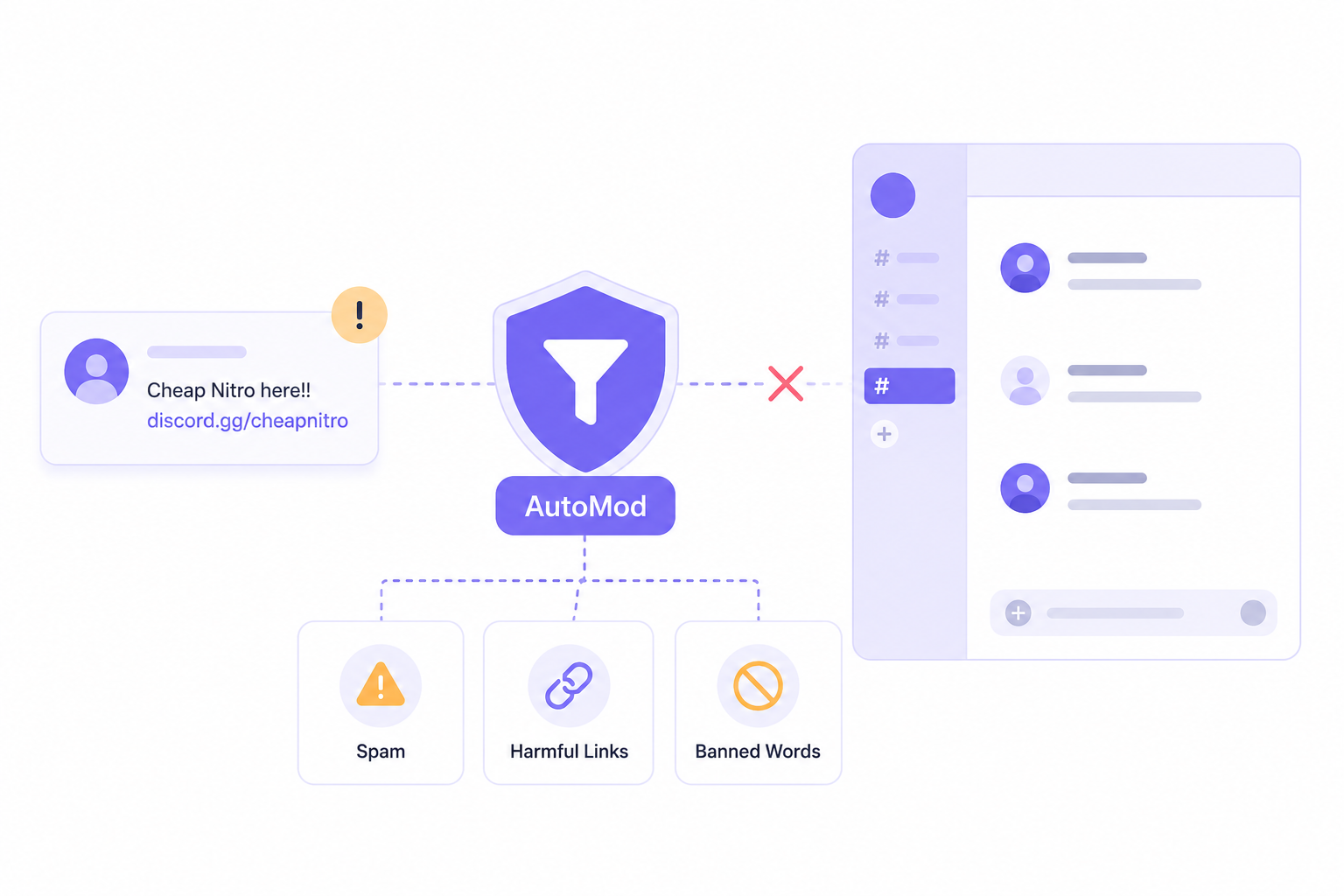
Discord AutoMod is one of the most underutilized tools available to server administrators. It is built directly into Discord, requires no third-party bot, and can automatically detect and act on rule-breaking content before a moderator ever needs to step in. For servers of any size, especially those managing active communities at scale, AutoMod is the first line of automated defense.
This guide covers how to configure AutoMod, how to build an effective banned words list, and how to use Discord AutoMod regex examples to target more sophisticated patterns.

AutoMod catches the message. CommunityOne helps you see the pattern.
Track server activity, member trends, and community health so your moderation strategy improves over time.
What Is Discord AutoMod?
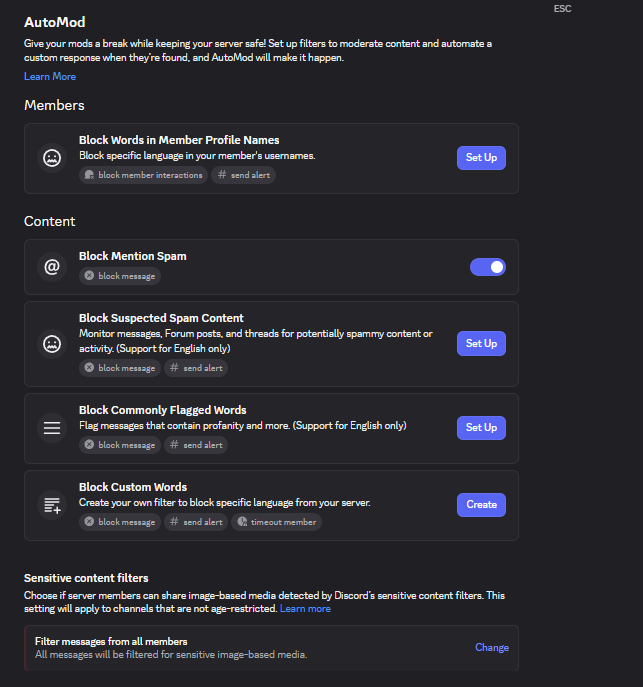
AutoMod is Discord's native content moderation system. It analyzes messages in real time and applies rules you define. When a message matches a rule, AutoMod can block the message from posting, send an alert to a designated channel, timeout the member, or any combination of the three.
AutoMod operates on four core rule types:
- Keyword filter -- Blocks messages containing specific words, phrases, or regex patterns you define
- Spam -- Detects message spam based on rate and repetition
- Mention spam -- Flags messages containing an unusually high number of user or role mentions
- Harmful links -- Blocks known malicious URLs automatically
You can create up to six custom keyword rules per server. Each rule can contain up to 1,000 keywords. That is a meaningful amount of coverage if you structure your rules thoughtfully.
How to Set Up AutoMod
To access AutoMod, navigate to your Server Settings and select "AutoMod" from the left sidebar. This is available to server owners and administrators.
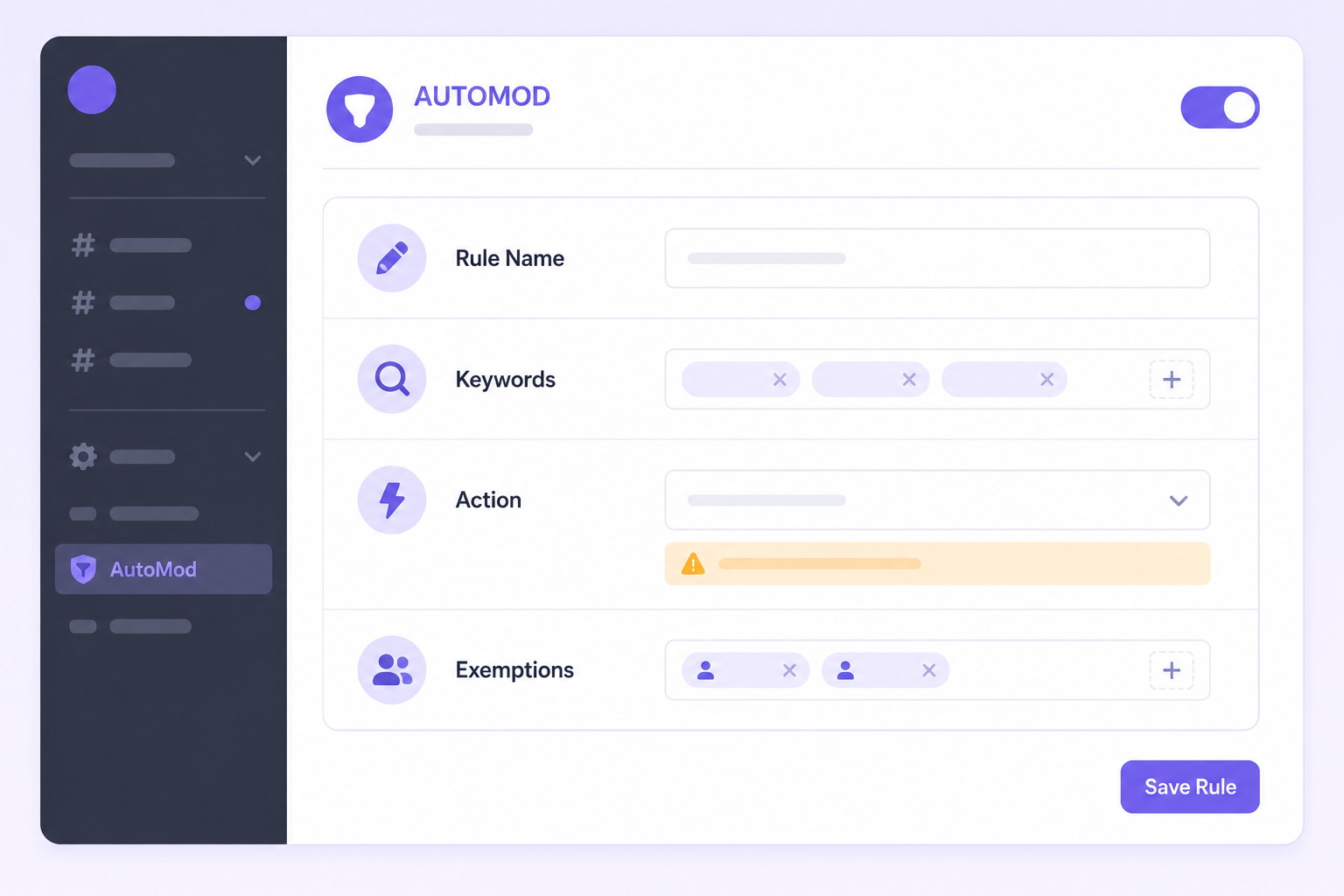
From there, you will see Discord's default rules already in place (harmful links, spam). Below those, you can create your own custom keyword rules.
Step 1: Create a new keyword rule. Click "Create Rule" and select "Block Custom Words."
Step 2: Name your rule. Use descriptive names like "Slurs and Hate Speech," "Spam Patterns," or "Scam Keywords" so your moderation team can identify them at a glance.
Step 3: Add your keywords. Enter the words, phrases, or patterns you want to block. More on structuring these below.
Step 4: Set the action. Choose what happens when a message triggers the rule: block the message only, block and send an alert to a mod channel, or block and timeout the member. For most keyword rules, blocking and alerting is the right default. Reserve automatic timeouts for high-confidence, high-severity patterns.
Step 5: Set exemptions. Designate which channels and roles are exempt from the rule. Your moderation team's private channels should typically be exempt so they can discuss flagged content without triggering AutoMod themselves.
Building an Effective Discord AutoMod Banned Words List
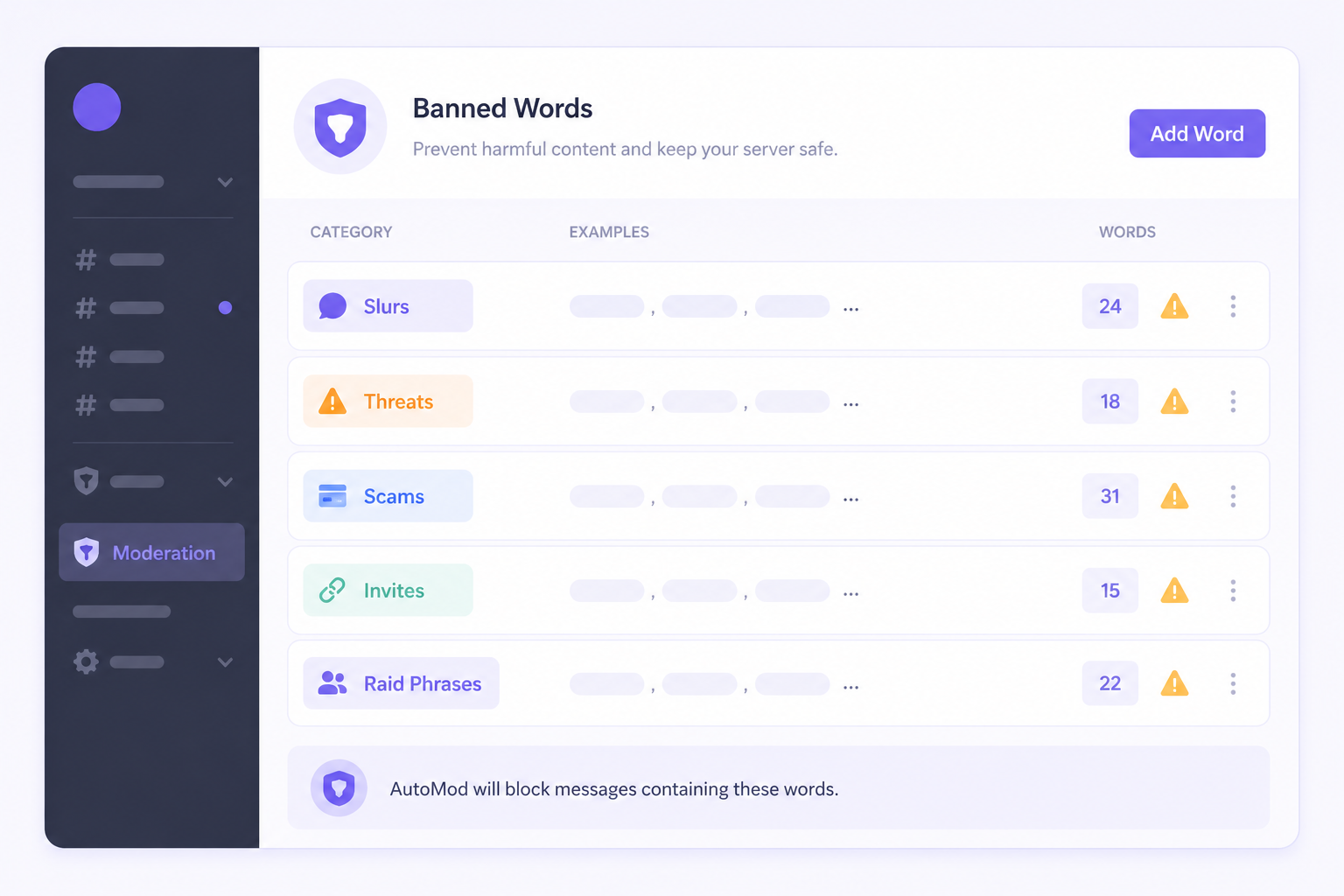
The quality of your banned words list determines the quality of your AutoMod coverage. A poorly constructed list either misses real violations or generates so many false positives that your moderation team loses confidence in it.
Start with high-certainty, high-severity terms. The first layer of any banned words list should include terms that are almost never used in good faith in a community context: slurs, explicit threats, and phrases associated with doxxing or harassment. These are worth blocking aggressively.
Add context-specific terms relevant to your community. A fintech community server will have different spam and scam patterns than a gaming community. Add terminology that is specific to the kinds of bad-faith behavior your community actually encounters, not just a generic list you copied from somewhere.
Use word boundary awareness. Discord's keyword filter supports wildcard matching. A keyword of spam* will match "spam," "spammer," "spamming," and so on. Use this deliberately. A wildcard placed too broadly can cause false positives. ass* would match "assistant," which is rarely what you intend.
Build a review process for your list. Your banned words list should not be set-and-forgotten. Review it monthly. Look at false positive alerts and remove or refine terms that are generating noise. Add terms that you are seeing appear in violations but are not yet captured.
A practical starting structure for a discord automod banned words list might include these categories:
- Hate speech and slurs (high confidence, block immediately)
- Threat language (block and alert)
- Known scam phrases ("DM me for free," "click this link for," "limited offer")
- Invite spam patterns (discord.gg combined with promotional language)
- Common raid call phrases
- Server-specific terms relevant to your community's context
Discord AutoMod Regex Examples
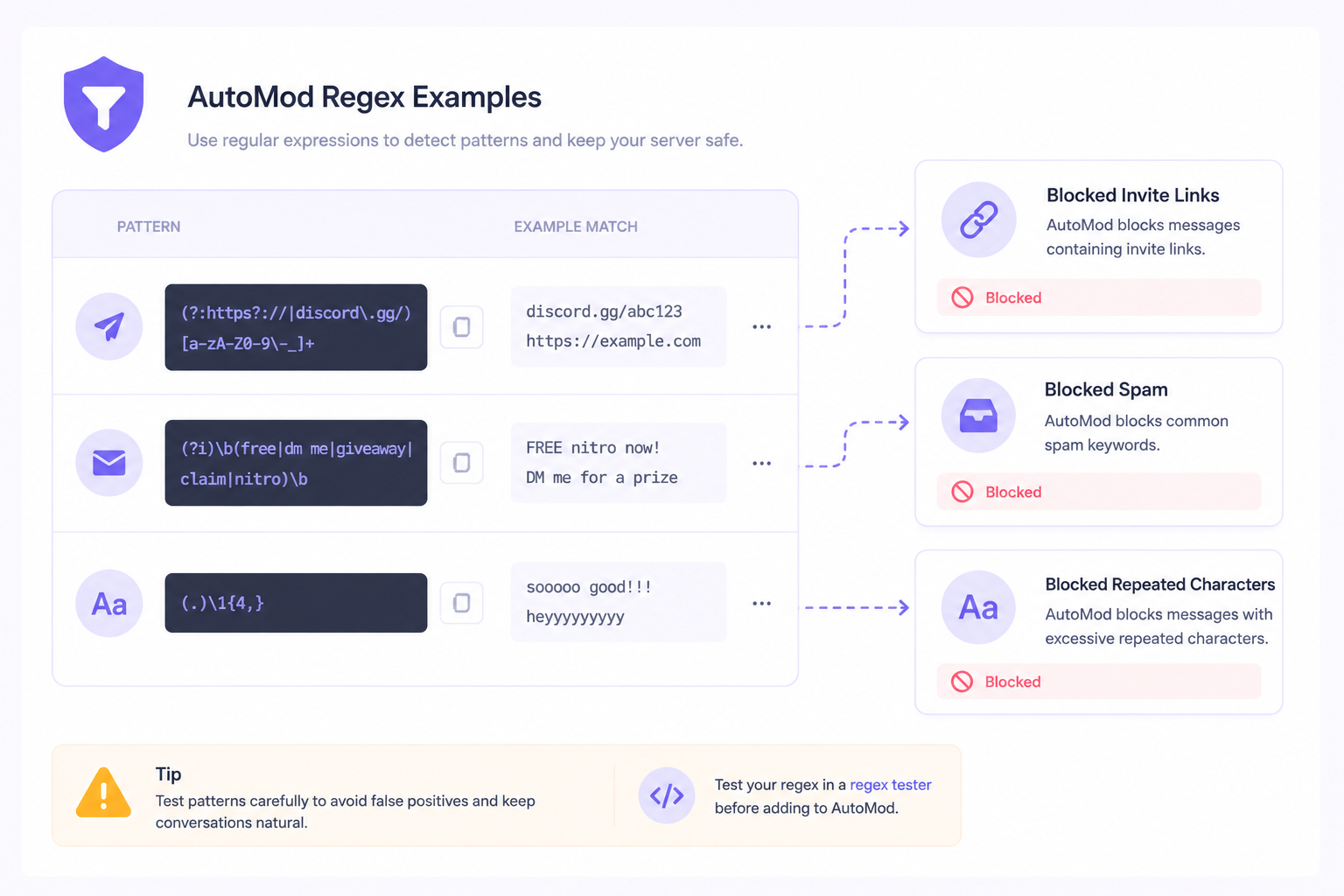
Regex (regular expressions) allows you to target patterns rather than exact words. This is significantly more powerful than keyword matching alone and handles variations, misspellings, and evasion tactics that bad actors commonly use.
Discord AutoMod supports regex in custom keyword rules. Here are practical examples you can adapt.
Block repeated character spam (e.g., "aaaaaaa" or "!!!!!!"):
(.)\1{4,}
This matches any character repeated five or more times in a row. It catches keyboard mashing and exclamation spam without catching normal words.
Block messages with excessive capitalization (shouting or rage patterns):
[A-Z]{10,}
Matches any string of 10 or more consecutive capital letters. Adjust the number based on your community's tolerance.
Block Discord invite links:
discord\.(gg|com\/invite)\/[a-zA-Z0-9]+
This catches both discord.gg/code and discord.com/invite/code formats. Useful for servers where unsolicited invites are not allowed.
Block common crypto/NFT scam phrasing patterns:
(free\s+nft|airdrop|mint\s+now|claim\s+your)
Matches common phrases used in crypto scam messages. Expand with additional terms relevant to your community.
Block messages mimicking impersonation patterns (e.g., fake admin messages):
(official\s+discord|discord\s+staff|discord\s+support|discord\s+team)
Catches a common social engineering pattern where bad actors impersonate Discord's own team.
Block phone number patterns (to prevent doxxing):
\b\d{3}[-.\s]?\d{3}[-.\s]?\d{4}\b
Matches standard US phone number formats with or without separators.
A few important notes on using regex in AutoMod. Regex is case-insensitive by default in Discord's implementation. Test your patterns carefully before enabling block actions, and use the alert-only action first to validate that your pattern is matching what you intend.
Common AutoMod Mistakes to Avoid
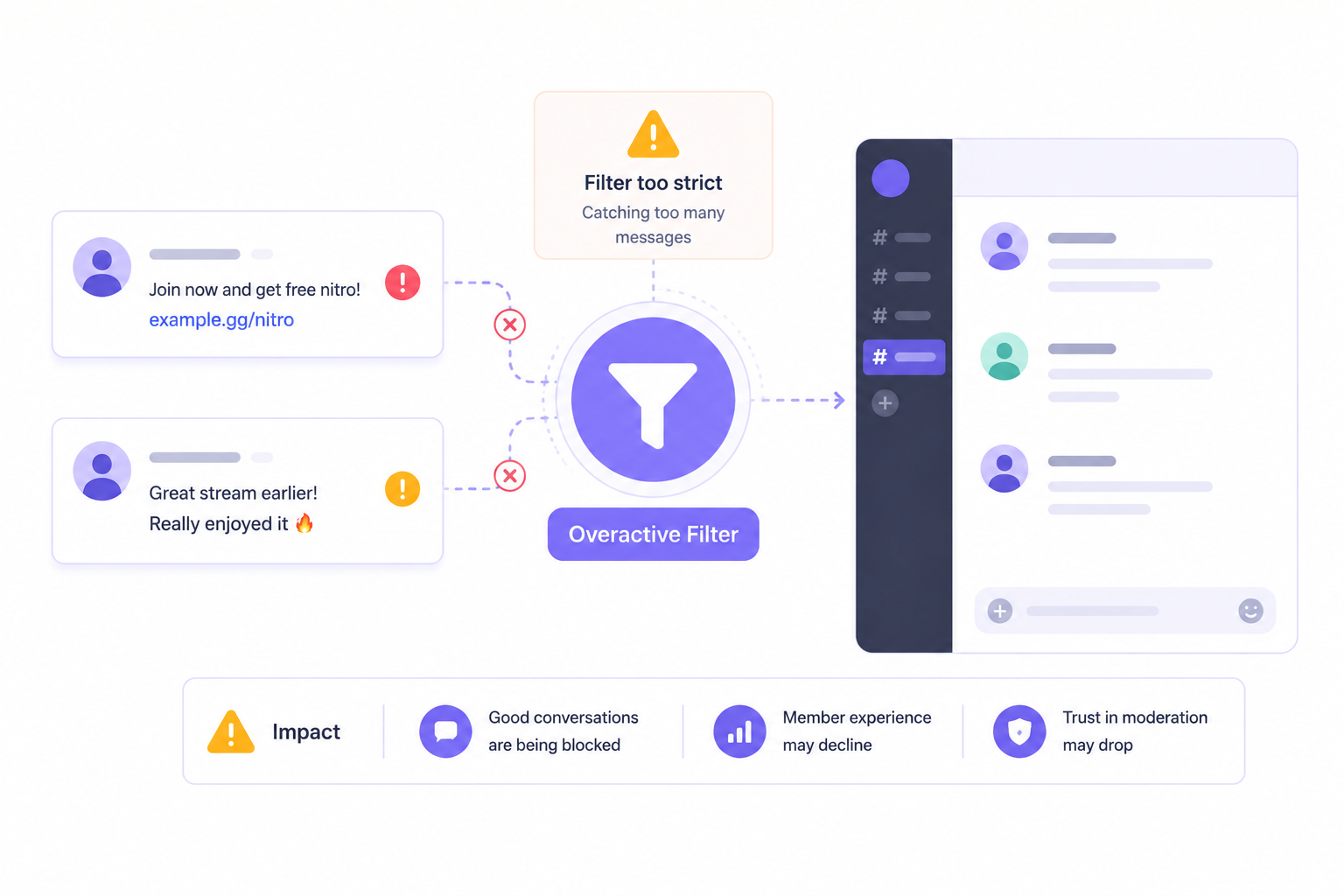
Over-blocking with broad keywords.
A keyword list that blocks too aggressively creates friction for legitimate members and trains your community to expect false positives. Your moderation team then has to manually review and reverse actions, which defeats the purpose.
Not setting up an alert channel. AutoMod is most useful when you can see what it is catching. An alert channel gives your moderation team visibility into borderline cases and helps you refine your rules over time.
Forgetting to exempt your moderation roles. If your moderators cannot discuss flagged content in their private channels without triggering AutoMod, the tool becomes an obstacle.
Treating AutoMod as a complete solution. AutoMod handles volume and catches clear violations. It does not replace human judgment for nuanced situations, context-dependent content, or cases that require pattern recognition across a member's history.
AutoMod as Part of a Larger System
For servers managing communities at enterprise scale, AutoMod is a necessary starting point but not a complete solution. The volume and complexity of moderation decisions in a large, active server require tooling that can understand context, track patterns across member behavior, and surface insights to the moderation team.
This is where purpose-built enterprise moderation tools, like the moderation features being developed at communityOne, are designed to complement what AutoMod provides natively. Automated filtering handles the obvious. Intelligent tooling handles the rest.
Getting Started
If you have not set up AutoMod yet, start with Discord's default rules and enable them. Then create your first custom keyword rule with your highest-confidence, highest-severity terms. Add an alert channel. Let it run for a week, review what it catches, and refine from there.
AutoMod is not a one-time configuration. It is an ongoing part of your moderation infrastructure that improves as you tune it. The servers that get the most out of it are the ones that treat it that way.
A well-moderated server is easier to trust.
List your community on CommunityOne and reach members looking for active, well-run Discord servers.