How to Create Custom Discord Emojis for Your Server
Custom emojis are one of the fastest ways to make a Discord server feel like a real community. Here is everything you need to know — file specs, animated GIFs, slot limits, and how to manage permissions.

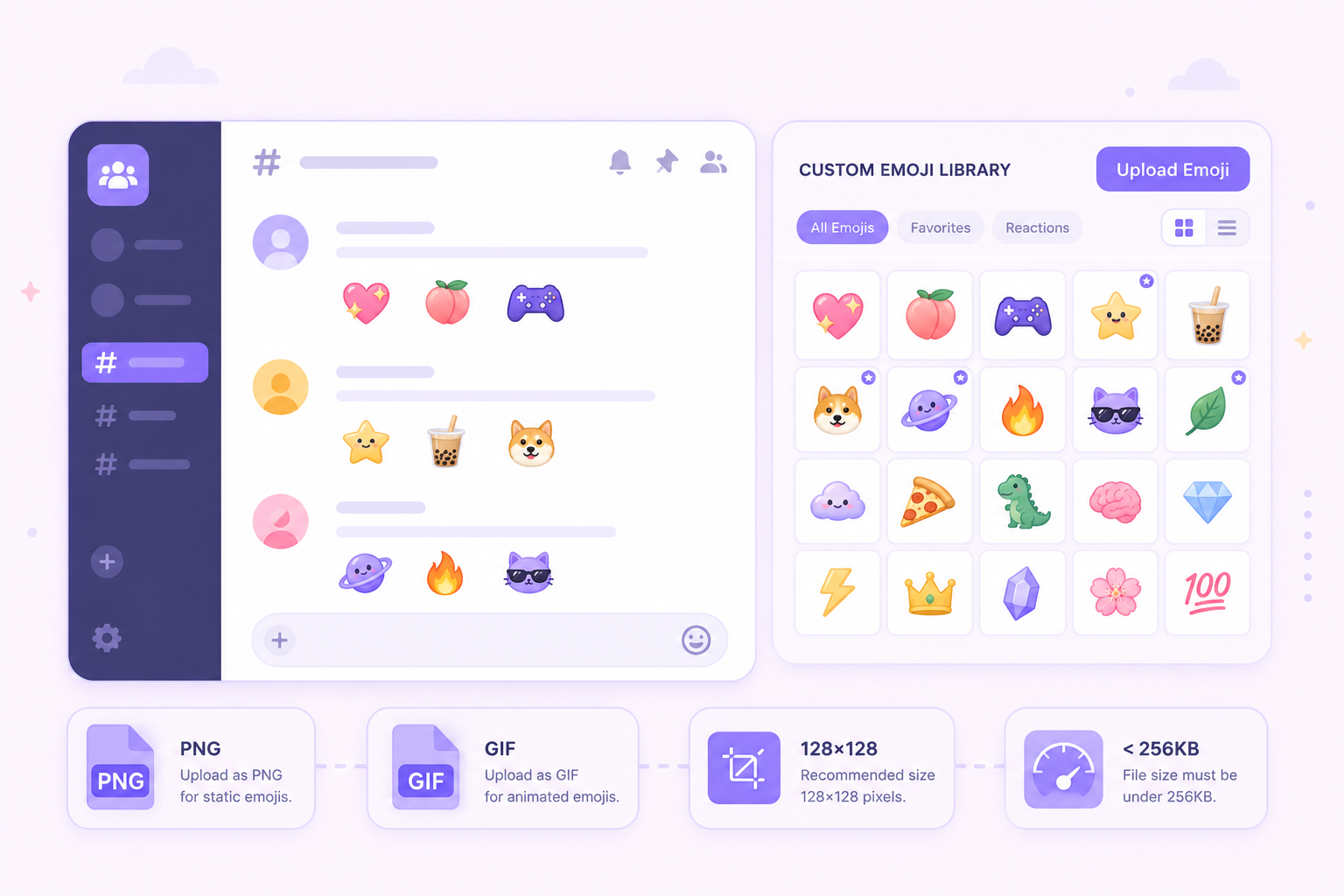
Key Takeaways
- Custom Discord emojis give your server a distinct identity and make chat feel more personal to your community.
- Images must be under 256KB at 128x128 pixels. Free servers get 50 emoji slots; Server Boosts increase this to 100, 150, or 250.
- Use PNG files for static emojis with transparent backgrounds and GIFs for animated ones.
- When creating emojis, leave about 20% padding around the subject to prevent awkward cropping.
- Animated emojis require Discord Nitro for users to send them outside their home server.
TL;DR: Create unique, engaging Discord emojis by following size, file type, and background transparency guidelines, and consider animated options for enhanced expression.

Turn your Discord emojis into organic community growth. Try our bot for free!
✨ Invite our bot →Ever had an inside joke that a standard yellow smiley face just couldn't capture? Generic phone emojis feel out of place when your server has a distinct culture. Creating your own custom discord emojis gives members a shared visual language — and servers with custom reactions consistently see stronger chat engagement and tighter community identity.
Before anything gets uploaded, there is one technical requirement to know. Discord requires all emoji images to stay under 256KB — anything larger gets rejected at upload. Aim for 128x128 pixels for the sharpest result. If you are also working on growing your server, keeping your emoji library clean and high quality matters more than having hundreds of mediocre ones.
Finding Your Perfect Emoji Style: From Grumpy Cats to PNG Requirements
Great photos often turn into blurry messes when uploaded because Discord shrinks large pictures down to tiny chat icons, sacrificing clarity. To avoid this common mistake, pay attention to emoji size and dimension requirements. The sweet spot is a perfect square, just like an Instagram profile picture.
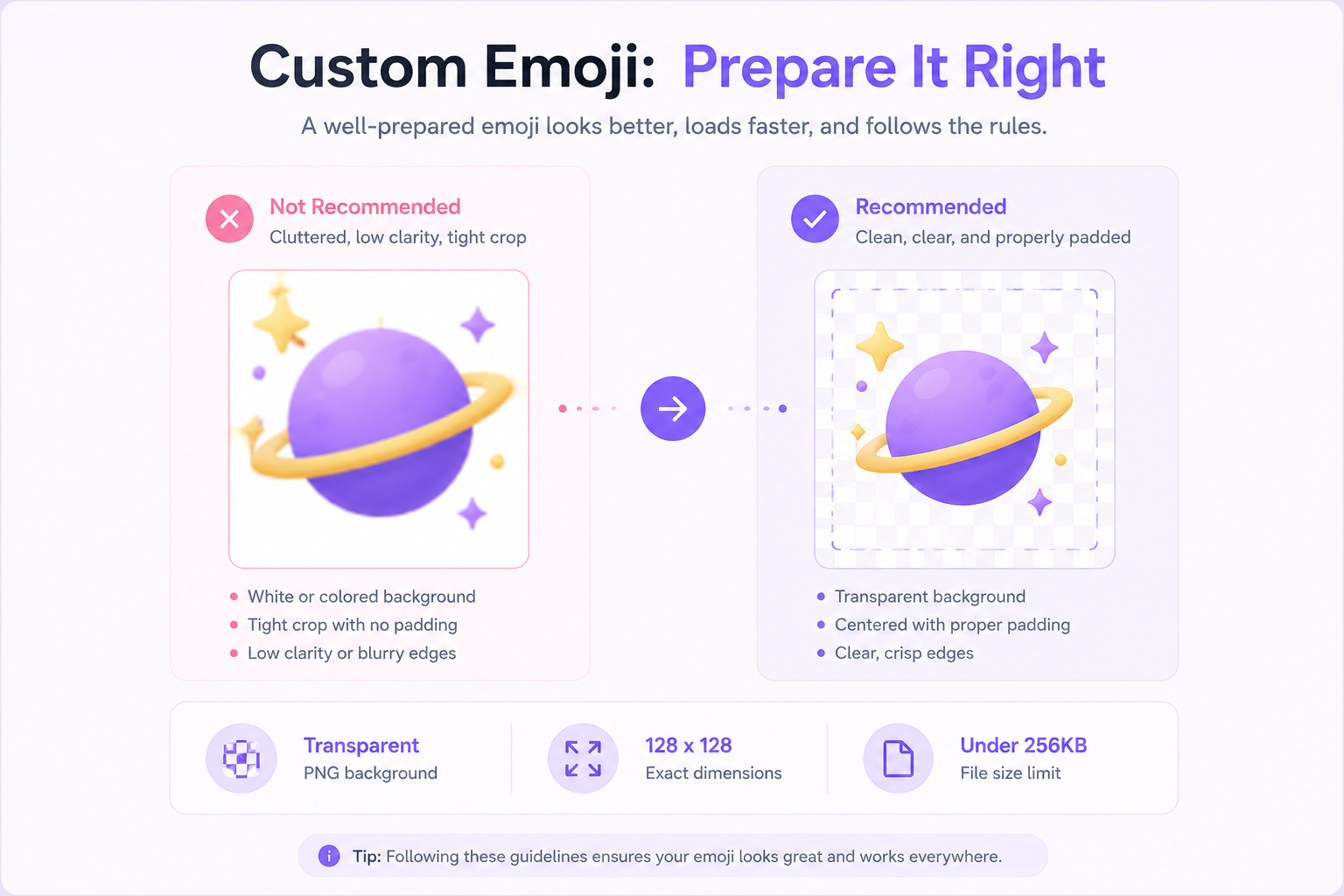
When building your server's aesthetic, you might wonder how many custom emojis are necessary to keep your community engaged. Our platform data shows that the median Discord server hosts 28 custom emojis, while 28% of servers have fewer than 10. Starting with a small, high-quality batch of transparent PNGs is often better than maxing out your server limits with cluttered, unoptimized images.
Getting the shape right is only half the battle. You don't want an ugly white box showing up behind your image in the dark chat screen. Optimizing png files for discord saves the day here. Saving your image as a PNG file allows for a transparent background, making your reaction look like a clean, professional sticker rather than a clunky cut-out.
Keep these golden rules in mind for transparent backgrounds for server emotes and crisp visuals:
- Best File Type: PNG for standard images, GIF for animated ones.
- Ideal Size: 128x128 pixels (this guarantees the image stays sharp while remaining under the file size limit).
Step-by-Step: Converting Any Photo into a Discord Reaction
You already know how to save that perfect picture of your dog to your phone. Now, let's transform it into the ultimate chat reaction. When creating custom discord emojis, a common mistake is zooming in too close. To keep your image from looking awkwardly chopped off in the chat, leave about 20% of empty space around your subject. This extra padding makes designing icons for server branding look clean and professional once they are shrunk down.
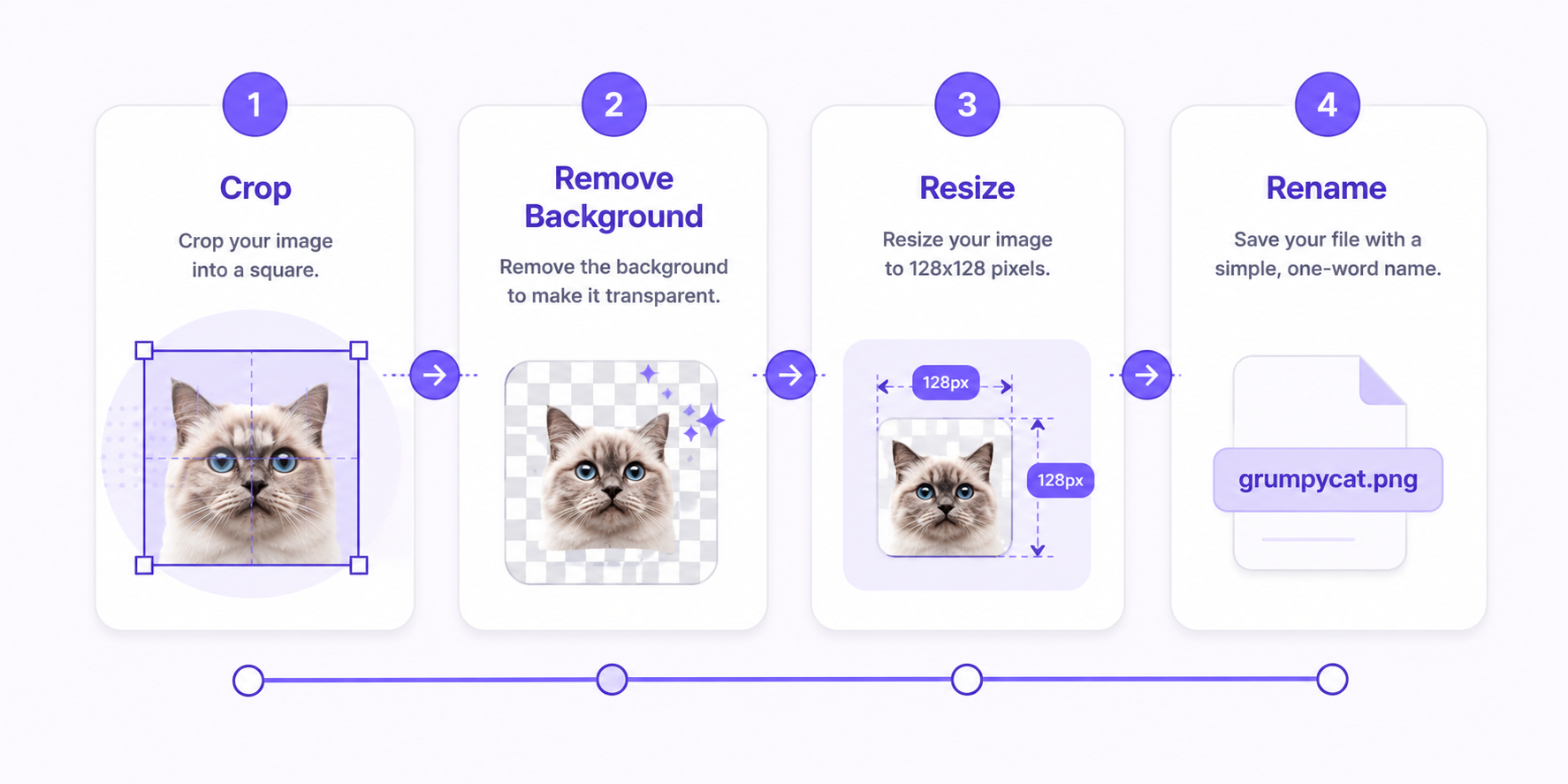
Turning that photo into a floating sticker takes just a few clicks using the best online emote maker tools. Follow this simple four-step workflow:
- Crop: Cut your saved photo into a perfect square.
- Remove Background: Use a free browser tool to erase the backdrop, ensuring your subject floats without an ugly white box behind it.
- Resize: Shrink the file down to a lightweight, chat-friendly size.
- Rename: Save the file to your computer with a simple, one-word title without spaces.
That final renaming step is the secret to finding your creation quickly later. Discord uses a special naming syntax, wrapping your word in colons (like :grumpycat:), which makes it instantly searchable in the emoji tray. With static pictures mastered, adding motion takes your server's expressions to the next level.
Making Them Move: A Guide to Animated Emojis and GIFs
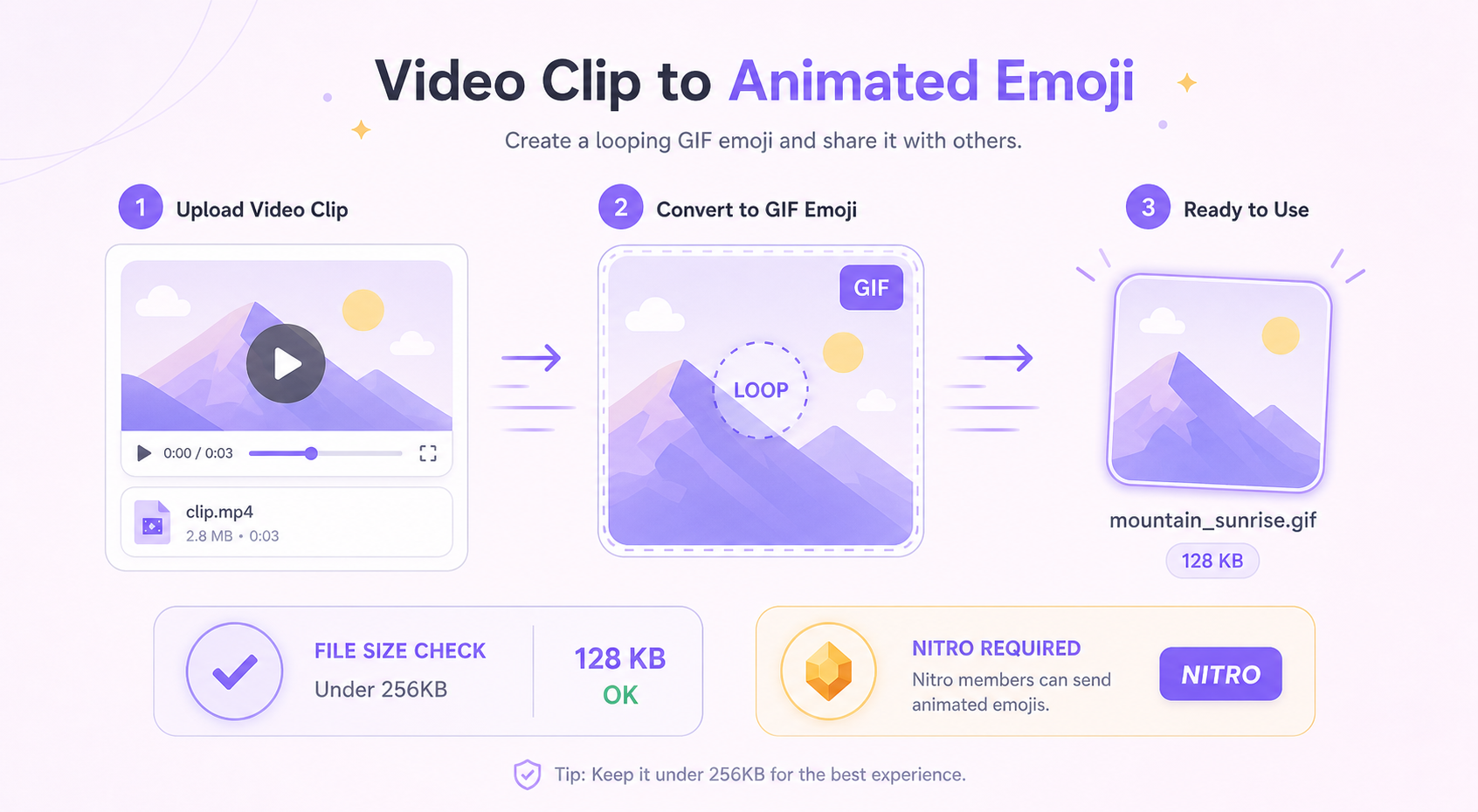
Turning a short video clip into a looping GIF is straightforward with any free video-to-GIF converter — just keep it under 256KB and 128x128px. One important caveat: Discord Nitro is required to actually send animated emojis in chat. Anyone can see them, but only Nitro subscribers can use them. If your server is Nitro-heavy, animated emojis are a strong incentive. If not, focus your slots on high-quality static ones your whole community can use.
Animated emojis are a major draw for Nitro users, but they require a bit more effort to source and optimize. According to our database of opted-in servers, 26.3% of all custom Discord emojis are animated. While static PNGs still make up the majority of server libraries, offering a selection of high-quality, looping GIFs can significantly boost chat engagement from your Nitro-subscribed members.
If you prefer skipping the creation process, you can easily find popular classics like the "banana dance emoji" or a dramatic "motion emoji" online. Check out these reliable sources for free animated emoji downloads:
- Emoji.gg: A massive, searchable library of user-submitted graphics.
- Tenor: Great for grabbing tiny, looping pop-culture GIFs.
- Public Emoji Servers: Discord communities built specifically for sharing free graphic packs.
Once you have a folder full of fun graphics saved to your computer, they need a permanent home in your server's expression library.
Uploading and Managing Your Server's New Expression Library
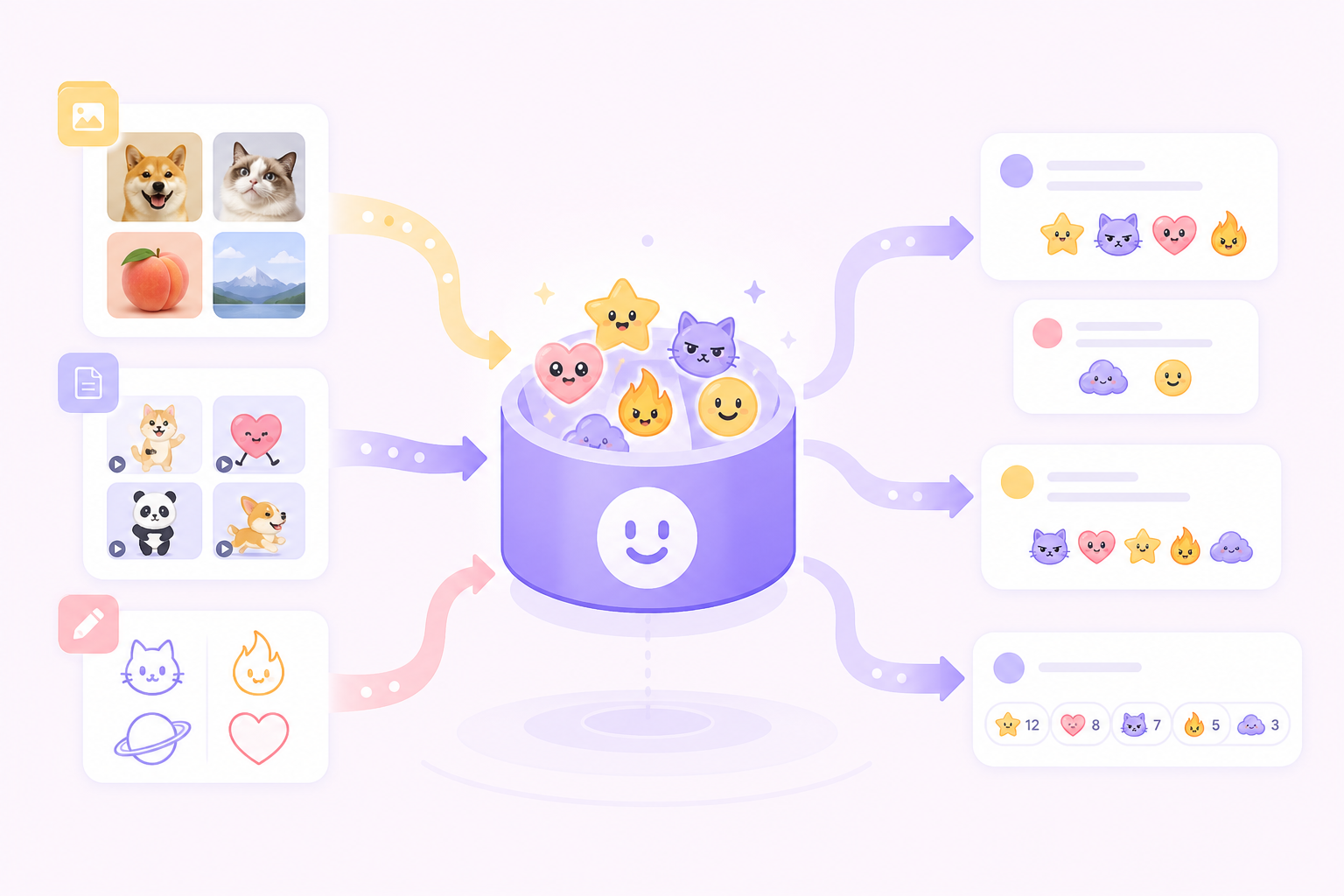
To upload an emoji, click your server name, go to Server Settings, and open the Emoji tab. From there, hit Upload Emoji and select your file. One thing to know before you start: free servers get 50 emoji slots by default. Server Boosts increase this — Level 1 adds 50 more slots (100 total), Level 2 gives 150, and Level 3 unlocks 250. If you hit the limit, either remove unused emojis or invest in Boosts before uploading new ones. Server Settings, and selecting the Emoji tab. That frustrating moment when an upload suddenly says "File too large" happens because you have hit the discord server image upload limits of 256KB. To solve this problem, or when fixing blurry discord image uploads caused by the app awkwardly stretching your photo, simply run your picture through a free online image compressor first.
If you're looking for inspiration on what to upload next, analyzing community download trends can point you in the right direction. Across our global directory, the most popular custom emoji tag is 'Black'. Integrating widely recognized themes or popular meme formats into your library can help new members feel right at home while they learn your server's specific inside jokes.
If you want other members to help manage emojis, you can grant that access without giving them full admin. Open the Roles tab in Server Settings, select the role, and toggle on Manage Expressions. Only give this to members who are active contributors to the server — people who understand the community culture and know which emojis belong. Roles tab and toggle on the Manage Expressions permission for their specific Server Role. You should reserve this access for members who:
- Have proven themselves as reliable community participants.
- Understand your chat group's specific inside jokes.
- Know how to compress image files properly.
Put Your Emojis to Work: Next Steps for Server Growth
Custom emojis are one of the fastest ways to make a server feel lived-in. A well-curated emoji library signals to new members that there is an actual community here, not just a channel list. Crop your photos, strip the backgrounds, keep the files under 256KB, and upload them under names your members will actually search for. The technical part takes less than ten minutes.
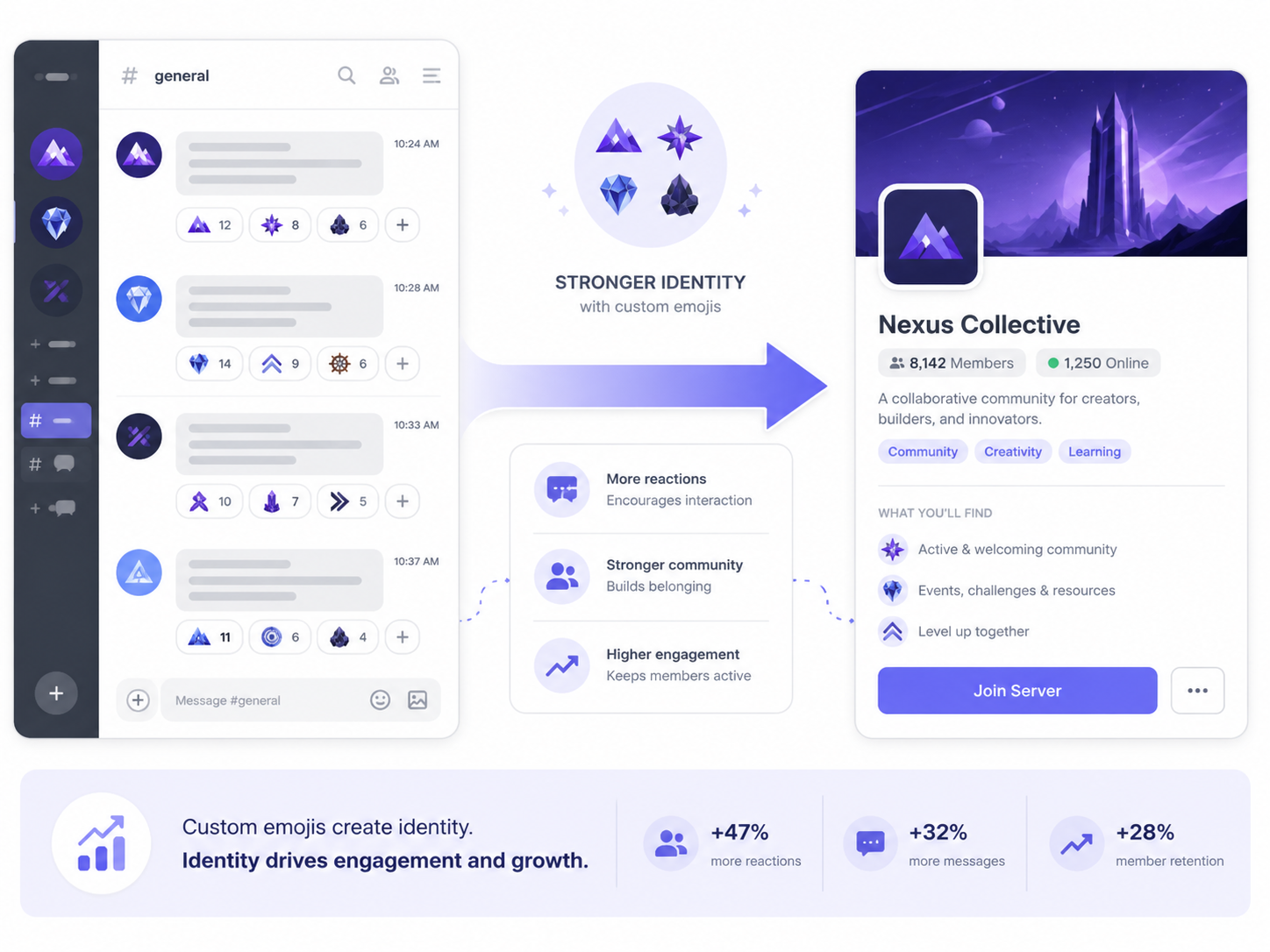
Once the emojis are set, the next lever is getting the right people into your server to use them. CommunityOne Server Listing lets you list your server in front of people who are actively looking for communities like yours — turning your custom emojis from an internal detail into a first impression that converts.
List your server on CommunityOne and reach members who are already looking for communities like yours.