Discord Stage AMA Guide: Sound, Screen Share, and Live Fixes Without the Panic
Most Discord Stage AMAs that go wrong fail on audio, not content. Here's the prep timeline, sound check, screen-share audio fixes, and what to do when something breaks live.

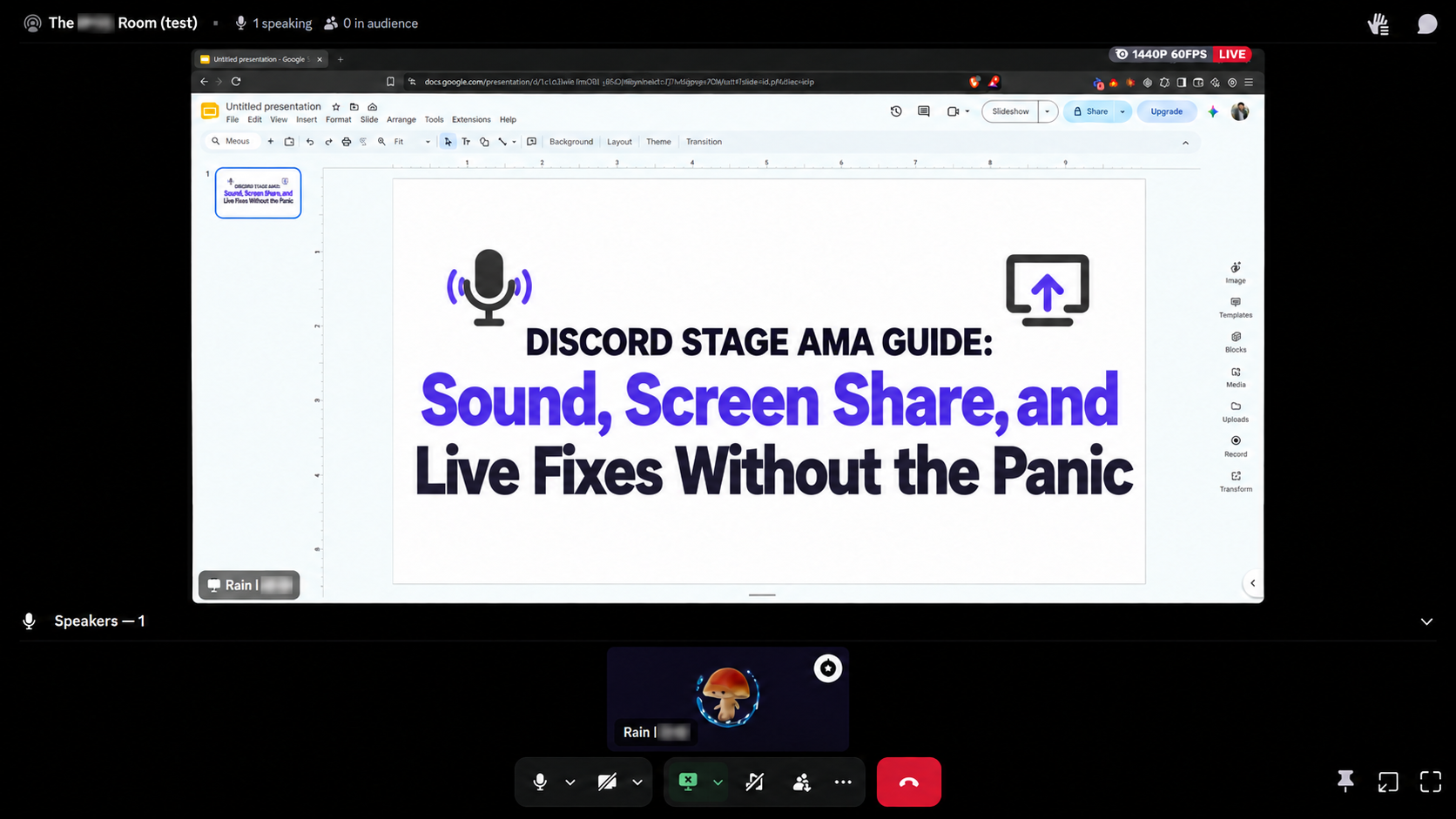
You promoted the AMA for a week. The topic is sharp, the guest is great, two hundred people are sitting in the audience. Then the host unmutes and nobody can hear a thing. Or the slides go up and the demo video plays in total silence. Or someone's laptop speakers start an echo loop that nobody can find.
Most Stage events that go wrong don't fail on content. They fail in the first five minutes, on audio and screen sharing, in front of everyone.
We covered how to set up and run a Stage AMA or town hall in an earlier guide. This one is the technical companion: the prep timeline, sound check, screen-share audio, and what to check when something breaks live.

Want a bigger crowd at your next AMA?
List your server on CommunityOne's Discord server directory so people looking for communities like yours can find you, preview the conversation, and join before your next Stage event.
The Discord controls that cause most AMA problems
Almost every "I can't hear you" moment traces back to one of a handful of controls. Make sure every speaker knows these before the day.
Speaker, audience, and Stage moderator are three different things
- Audience: joining a Stage puts you here. You can listen, but you can't talk.
- Speaker: allowed to talk on the Stage. To get here, use Request to Speak or have a moderator invite you, accept the invitation, then unmute.
- Stage moderator: manages speakers and the event. Being a speaker does not make someone a moderator, so confirm each person's role in advance.
The three icons in the bottom-left corner
- Microphone = Mute. A slash means others can't hear you, but you can still hear them.
- Headphones = Deafen. A slash means you can't hear the call and your mic is muted too. This is the one that catches people out.
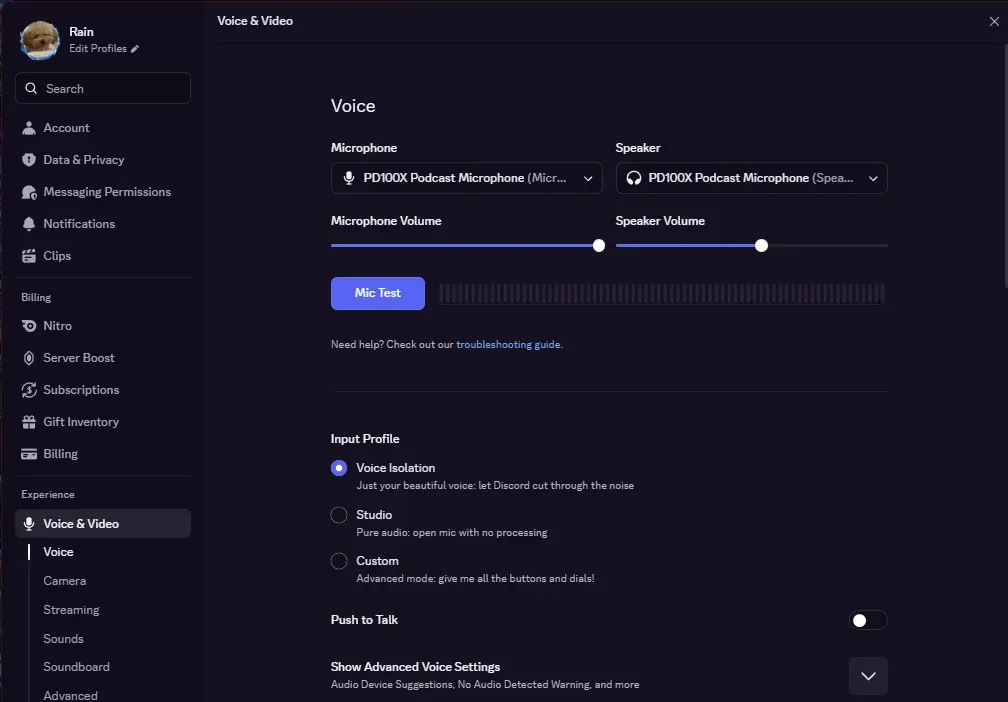
- Gear = User Settings. Go to Voice & Video to pick your microphone (Input Device) and earphones (Output Device). Depending on your version, these may be labelled "Microphone" and "Speaker."

The green ring is a clue, not a confirmation
When Discord detects voice activity, a green ring lights up around that person's avatar (not to be confused with the small green online-status dot). It's useful for spotting who's talking, but background noise can trigger it too, and it tells you nothing about whether your presentation's video or music is being shared. Only a teammate listening from the audience can confirm that.
Before your first AMA: set up Discord and your devices
- Use the Discord desktop app, not the browser. Device setup and troubleshooting are easier, and screen-share audio is more reliable. Keep it updated.
- Connect earphones or a headset, then open User Settings → Voice & Video and select the correct Input Device and Output Device.
- Re-check those settings before every AMA, especially if you've switched devices since the last one.
One to two hours before: prepare everything
- Presentation: review the slide order, links, videos, and embedded audio. Keep a backup copy somewhere a teammate can reach.
- Logistics: confirm the event time, Stage link, speaker order, and who owns screen sharing and who owns questions.
- Machine and connection: plug in your laptop, close apps you don't need, check your internet, and have a backup connection (like a phone hotspot) ready if you can.
- Permissions: confirm you can access the Stage and the test voice channel, including Video permission if you'll share slides or a camera.
- A listener: line up a teammate to help with the sound check. You can't do it alone.
Test in two places: a test Stage and a test voice channel
Set up a private test Stage and a test voice channel in your server for exactly this. Run through both.
1. On the test Stage
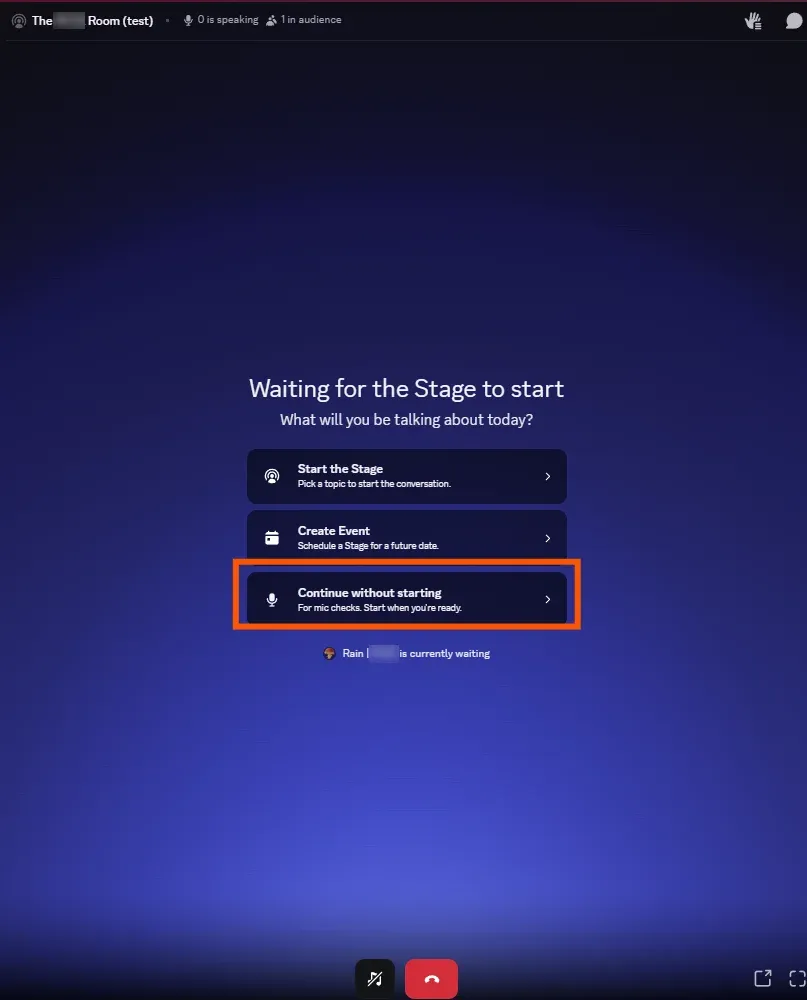
- Join and choose Continue without starting if prompted, so you don't accidentally kick off a public event.
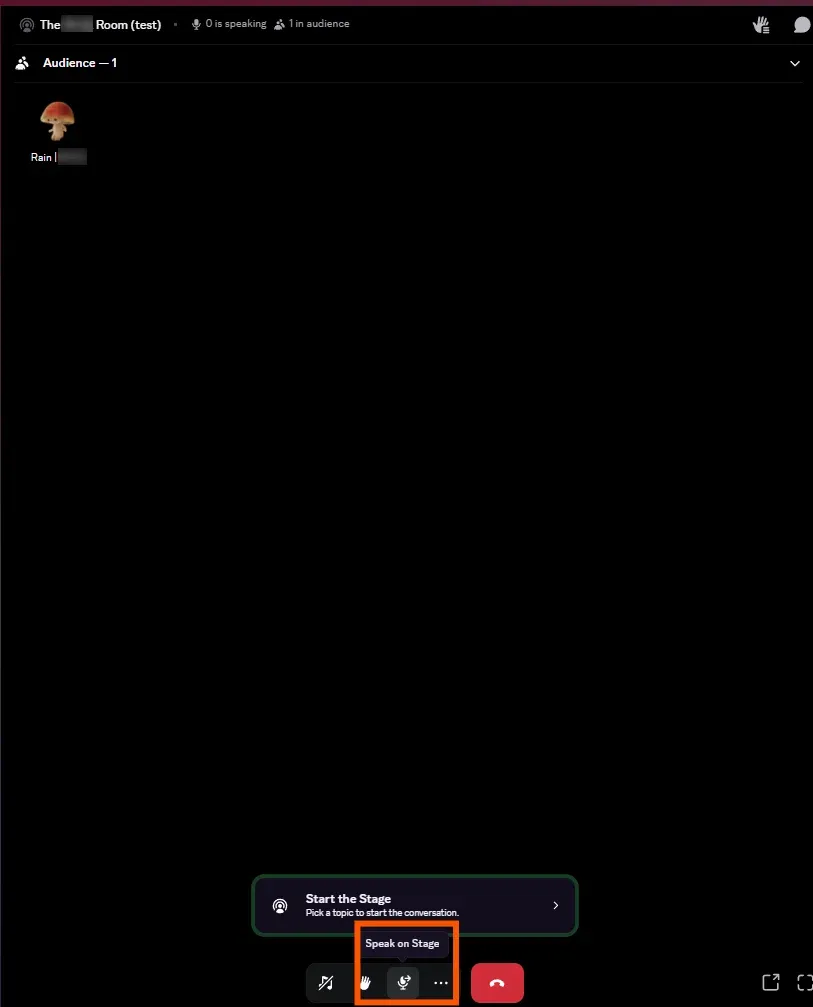
- If you're a Stage moderator, move yourself to the speaker area. If not, ask a moderator to invite you and accept.
- Unmute and have your teammate confirm they can hear you, and that you can hear them.
2. In the test voice channel
- Talk at your normal volume and listen for low volume, distortion, echo, or audio cutting out.
- Test mute and unmute.
- Share your actual presentation and play an actual video or audio clip from it.
- Ask your teammate to open your stream and confirm three things: the slides are visible and readable, your voice is clear, and the clip is audible.
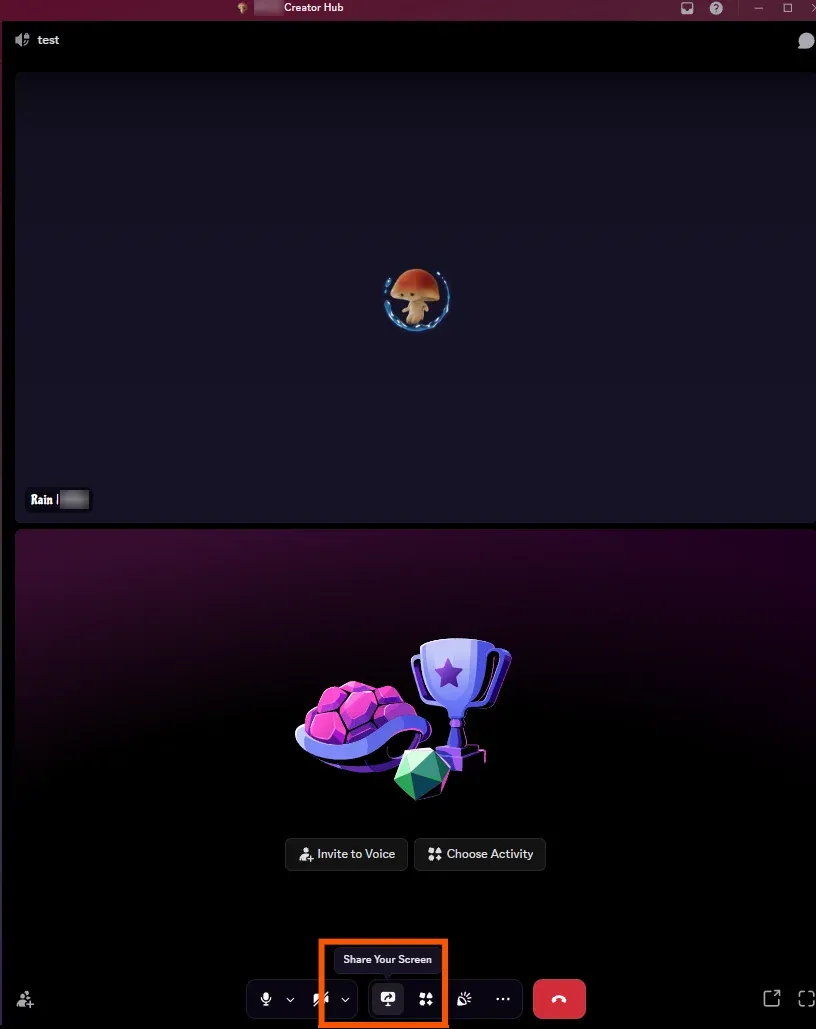
Hearing the clip on your own computer proves nothing. Discord treats your microphone and your presentation's sound as separate audio sources, and only someone on the other end can confirm both are coming through. To be safe, run the screen-share test on the Stage as well.
Fifteen to ten minutes before: the final check on the real Stage
- Move to the official Stage and repeat the mic, output, screen-share, and presentation-audio checks with every speaker.
- Have a teammate confirm everything from the audience side.
- Get your first slide up and ready.
- Silence notifications on every device.
- Agree that everyone stays muted when they're not speaking.
Getting presentation audio into your screen share
This is the single most common failure, and the fix depends on how you're running Discord.
First, a quick reminder: Discord displays your presentation, it doesn't run it. Open the deck in PowerPoint, Google Slides, or Keynote, start the slideshow there, then go back to Discord, click Share Your Screen, and pick that slideshow window or tab. If you see a blank window or the wrong screen, stop sharing and select the right one.
Discord desktop app (Windows or macOS)
Start the slideshow in its own app, then share the application or slideshow window. Supported desktop setups capture application audio along with the picture. You may not see a browser-style "share audio" checkbox, which is normal.
Discord in a browser
Your browser opens its own sharing picker. For Google Slides or any browser-based deck, choose the tab with the presentation and turn on Share tab audio if it's offered. Sharing audio from a whole window or screen depends on your browser and operating system. Discord officially lists Chrome for browser audio capture, so test Brave, Edge, or anything else well before you rely on it for a live event.
Either way, the check is the same: play a real clip and have a teammate open your stream, check its volume isn't muted, and confirm they hear both you and the clip.
Live troubleshooting: what to check when something breaks
Whatever the problem, start with the same four things: your speaker status, your mic mute, Deafen, and your selected devices. If all of those are correct and audio still fails, leave and rejoin the Stage, then have a teammate confirm they can hear you. Here's what to check for the most common situations.
"I can't hear myself. Is my mic broken?"
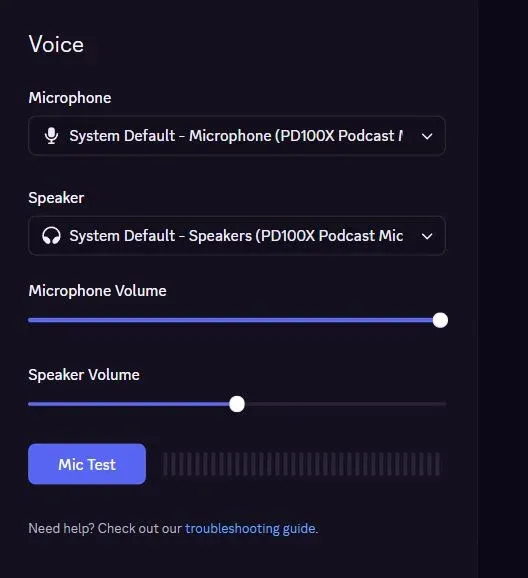
Probably not. You normally won't hear your own voice played back on a Stage. Ask a teammate instead. To test your mic on its own, go to User Settings → Voice & Video → Mic Test, and stop the test before you go back, because it temporarily mutes your channel audio.
"I can't hear anyone else."
Look at the headphones icon. If it has a slash, Deafen is on: click it to turn it off, then check your mic icon, since Deafen mutes that too. Confirm your earphones are selected as the Output Device, and check Discord's output volume, your computer volume, and the headset connection. If it's just one person you can't hear, check their individual user volume.

"Nobody can hear me."
Confirm you're a speaker (not audience) and unmuted. Check for a physical mute switch on your headset, confirm the right Input Device is selected, and make sure your operating system has given Discord microphone permission. Still nothing? Disconnect, reconnect, become a speaker again, and have a teammate listen.
"They can hear me but not my video."
See the screen-share audio section above. On desktop, share the slideshow window rather than the whole screen; in a browser, share the tab with tab audio on.
"There's echo or feedback."
Someone is almost certainly on speakers. Get everyone on earphones or a headset, close duplicate Discord sessions (a phone and a laptop both logged in is a classic culprit), and have speakers mute when they're not talking.
"My audio is cutting out or sounding robotic."
That's usually your connection. Pause heavy downloads and close unnecessary apps. If it continues, leave and rejoin. If it still isn't fixed, let a teammate keep the AMA going while you test in the voice channel, and get a sound check from the audience when you return.
The underlying rule: always have a backup. A second person with the deck ready to share means one person's tech problem never stops the whole event.
The quick checklist
- Desktop app installed and updated; correct Input and Output Devices selected
- Deck reviewed, backup copy ready, roles confirmed (who speaks, who moderates, who shares, who handles questions)
- Laptop plugged in, connection checked, backup connection ready
- Tested on a test Stage and in a test voice channel, with a teammate listening
- Screen share tested with a real clip, confirmed from the audience side
- Final check on the real Stage 15–10 minutes before; notifications off; first slide up
None of this is complicated. It just has to happen before you go live, not during. A fifteen-minute sound check is the difference between an AMA your community talks about and one they remember for the wrong reasons.
Once your Stage events are running smoothly, the next step is making sure new members can actually find your server. List your server on CommunityOne so people browsing for communities like yours can discover it, preview the conversation, and be in the audience for your next AMA.